Best Printable Flashcard Makers
The best printable flashcard maker is a free, browser-based tool that lets you type your terms and definitions and print clean, evenly sized cards in minutes — no account, no software, no design skills. Tools like our free flashcard maker, Quizlet, and a few template-based options each handle printing differently, but the winner for most people is whichever one gets you from "I need cards" to "they're on the printer" fastest. This guide compares the top choices so you can pick the right one and skip the trial and error.
Want to skip ahead and just print? Open the free flashcard maker, type your terms on one side and definitions on the other, and hit print. You'll get tidy, ready-to-cut cards with no sign-up and no watermark.
What Makes a Printable Flashcard Maker "Good"
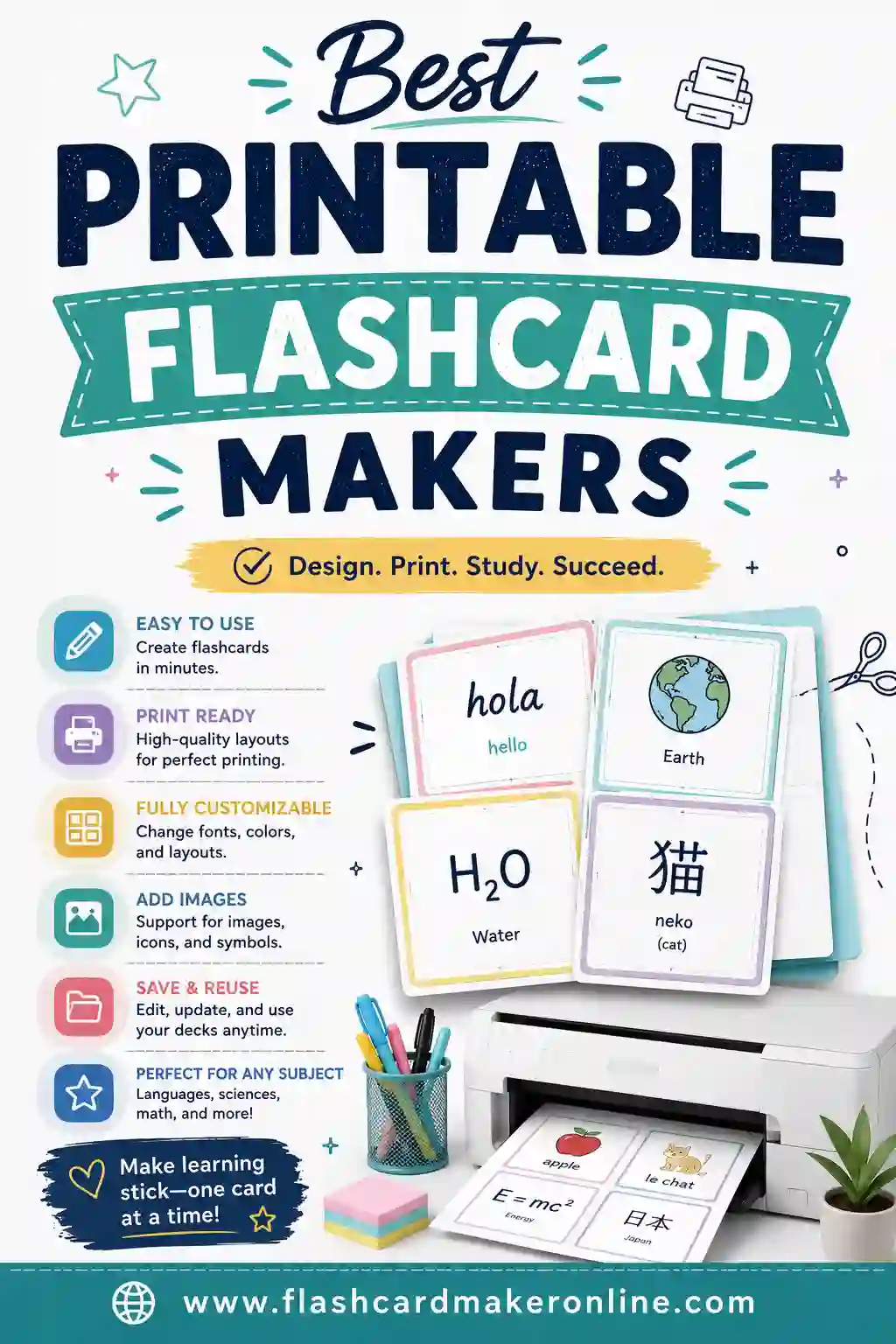
Not every flashcard tool prints well. Some are built for on-screen study and bolt printing on as an afterthought, which leaves you with cramped layouts or one card per page. When you're judging a printable maker, here's what actually matters:
- Clean print layout. Cards should line up in a neat grid with room to cut.
- Double-sided support. The definition should land on the back of the right card, or sit clearly beside it.
- No watermark. You shouldn't have a logo stamped across your study cards.
- Truly free. Printing your own cards shouldn't cost a subscription.
- Fast setup. Type, print, done — no account hoops.
- Adjustable size. Index-card size for desks, smaller for pockets.
A simple flashcard maker that prints a clean grid with cut lines beats a flashier tool that fights you at the print step. Looks matter less than whether the cards come out usable.
The Best Printable Flashcard Makers, Compared
Here's how the leading options handle the one job that counts here — getting good cards onto paper.
| Maker | Sign-up needed | Print quality | Double-sided | Cost |
|---|---|---|---|---|
| Free flashcard maker | No | Clean grid, cut lines | Yes | Free |
| Quizlet | Yes (for printing) | Good (paid for some layouts) | Yes | Free tier + paid |
| Cram | Yes | Basic | Limited | Free |
| Word/Docs template | No | You design it | Manual | Free |
| Avery template | No | Excellent (their stock) | Yes | Free (template) |
Each row is a real option. Below, here's where each one shines and where it gets in your way.
Free browser flashcard maker — easiest all-rounder
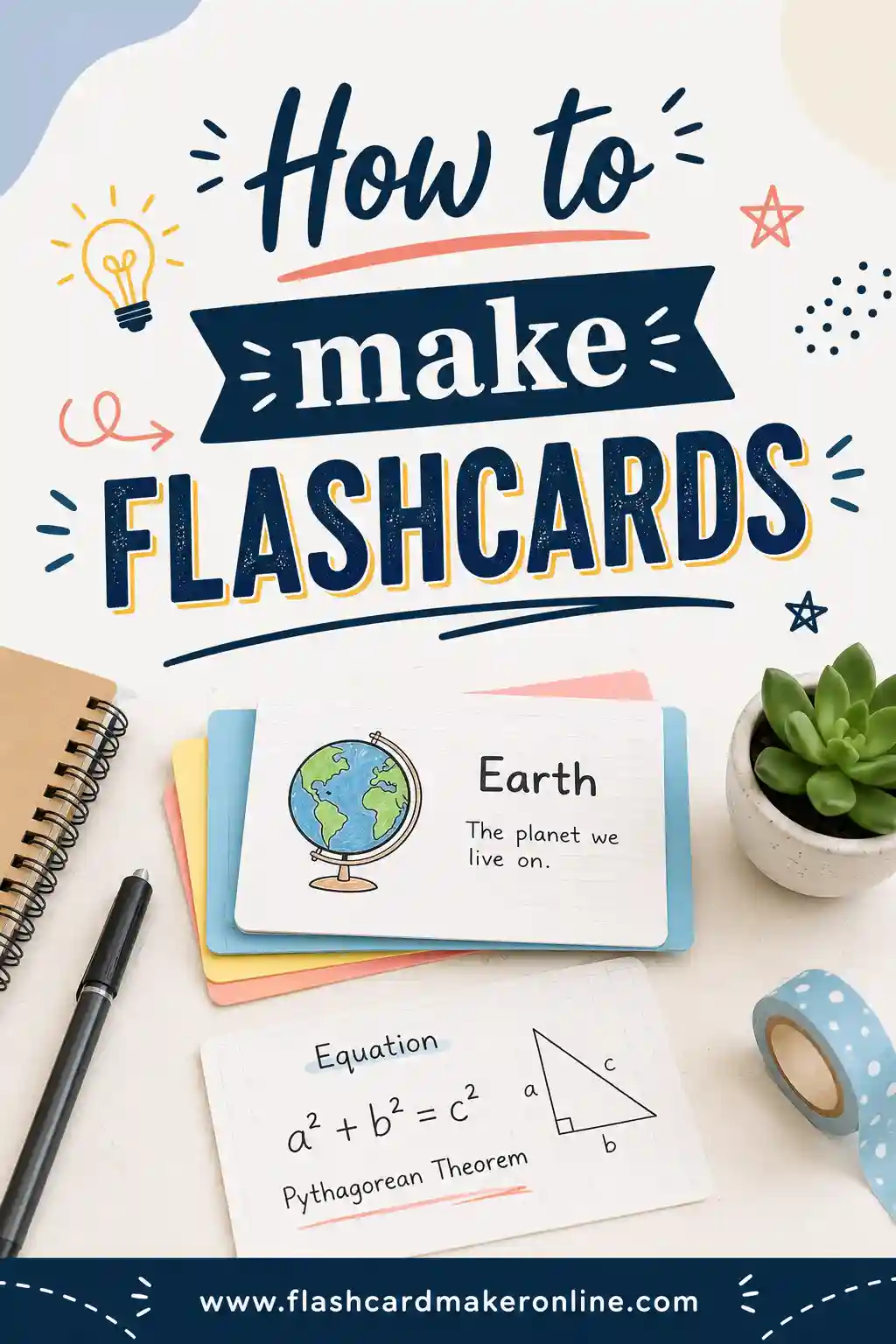
This is the fastest path for most people. You type terms and definitions, and the tool lays them out in a clean printable grid with cut guides. There's no account, no watermark, and you can print as many sheets as you need. It also doubles as an on-screen study tool, so the same deck works digitally and on paper. If you want a step-by-step, our how to make flashcards guide walks through it start to finish.
Quizlet — great study modes, paid print extras
Quizlet is excellent for on-screen studying and has a huge library of shared sets. It can print, but you'll need an account, and some print layouts sit behind a paid tier. If you already live in Quizlet for studying, printing from it is convenient. If you mainly want paper, a dedicated printable maker is less fuss.
Cram — simple and free
Cram is a no-frills flashcard site that lets you build and study sets for free. Its printing is basic but functional. It's a fine choice if you want a straightforward web app and don't mind creating an account.
Word or Google Docs template — full control
If you want total control over the look, a table in Word or Google Docs lets you design cards exactly how you like. The downside is that you're doing the layout work yourself: setting up the grid, aligning fronts and backs, and sizing everything. Great for a one-off custom design, slow for a big deck.
Avery templates — best for label-style cards
Avery offers free templates that match their pre-perforated card stock. If you buy their cards, the print lines up perfectly and you snap them apart with no cutting. It's the most polished physical result, though it ties you to buying specific paper.
How to Choose the Right Maker for Your Needs
Match the tool to the job. Run through these quick prompts:
- Need cards in the next five minutes? Use a free browser maker with no sign-up.
- Already study in Quizlet? Print from there for convenience.
- Want a very custom design? Build a table in Word or Docs.
- Want snap-apart, no-cutting cards? Use Avery stock with their template.
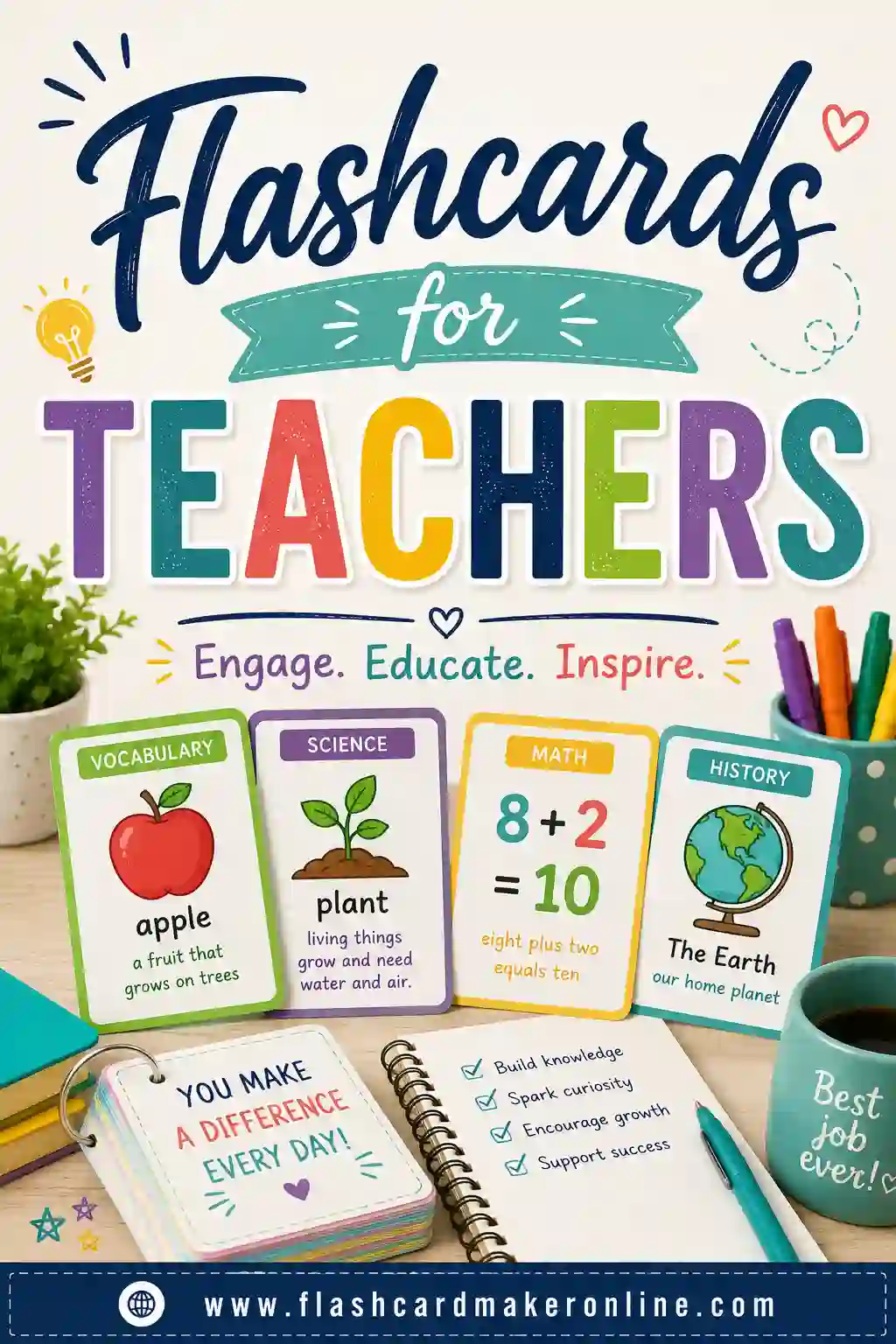
- Making cards for a class set? A browser maker prints a clean grid fast — see flashcards for teachers for classroom tips.
When in doubt, start free and simple. You can always graduate to fancier stock once you know flashcards are part of your routine.
A Sample Deck You Can Print Today
Want something concrete to test your printer with? Here's a ready-made vocabulary deck of common SAT-style words. Type it into the flashcard maker and print a sheet to see how your cards come out.
| Term | Definition |
|---|---|
| Abate | To lessen or reduce in intensity |
| Benevolent | Kind and generous |
| Candor | Honesty and openness |
| Diligent | Hardworking and careful |
| Eloquent | Fluent and persuasive in speech |
| Frugal | Careful with money; thrifty |
| Gregarious | Sociable and fond of company |
| Hinder | To slow down or get in the way of |
| Impartial | Fair; not taking sides |
| Lucid | Clear and easy to understand |
| Meticulous | Very careful about small details |
| Novice | A beginner |
| Obscure | Unclear or little known |
| Pragmatic | Practical and sensible |
| Resilient | Able to recover quickly |
| Scrutinize | To examine closely |
| Tenacious | Persistent and determined |
| Verbose | Using more words than needed |
| Wary | Cautious; on guard |
| Zealous | Very enthusiastic and committed |
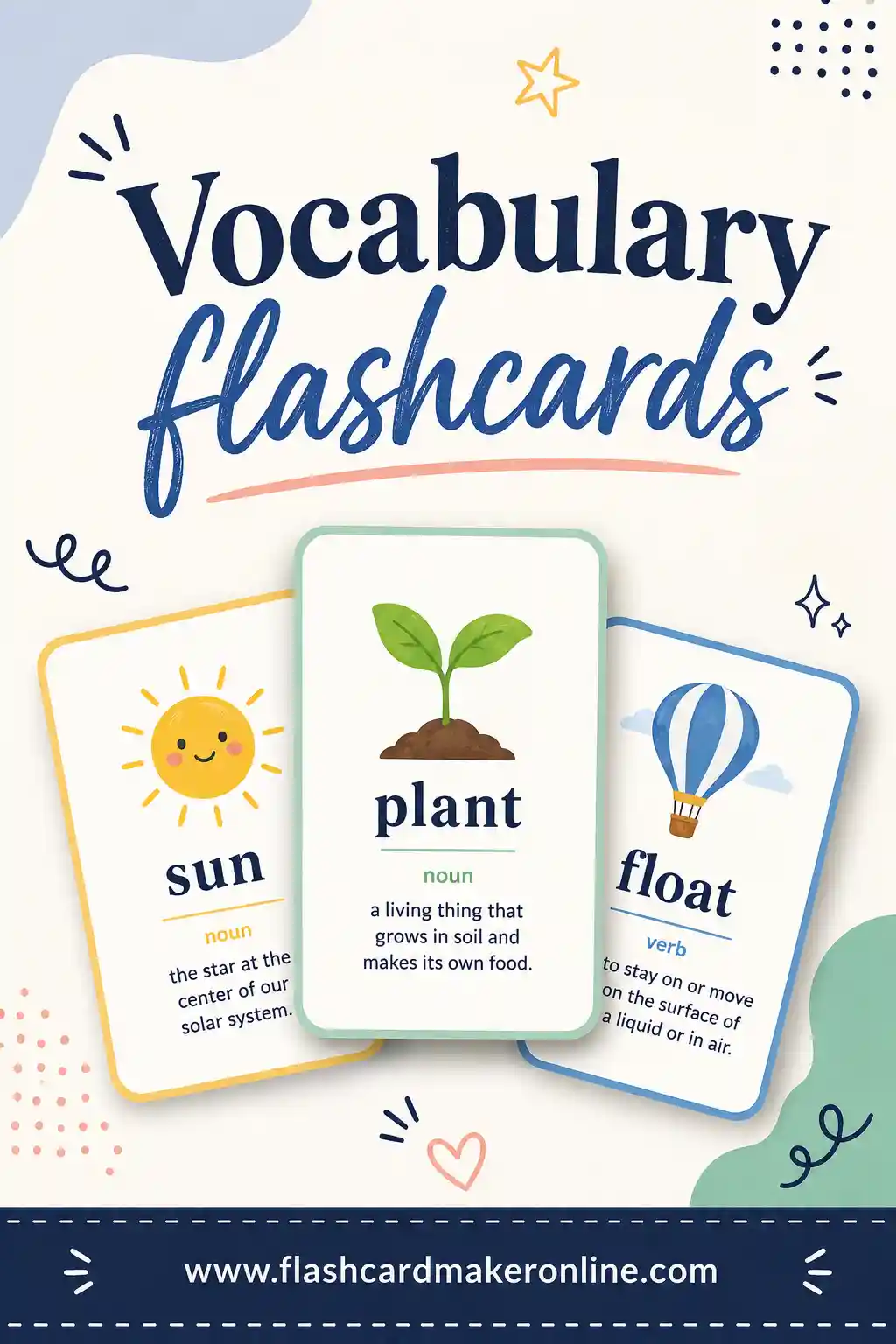
That's 20 cards — a perfect test run. Print it once to check your margins before committing to a big stack. For more on building word sets like this, see our vocabulary flashcards guide.
Printing Tips for Crisp, Long-Lasting Cards
A few small choices make your printed cards look sharp and last:
- Use cardstock. Regular paper works for a single test, but cardstock survives months of shuffling and feels nicer to hold.
- Print a test page first. One sheet tells you whether your margins are right before you waste a stack.
- Check double-sided alignment. If you print answers on the back, run a test to confirm each definition lands on the correct card.
- Laminate or use sleeves for reuse. Then you can write on cards with dry-erase markers and wipe them clean.
- Cut along the guides. A paper cutter is faster and straighter than scissors for a big deck.
- Keep cards simple. One question, one answer per card. Crowded cards are hard to study and hard to print cleanly.
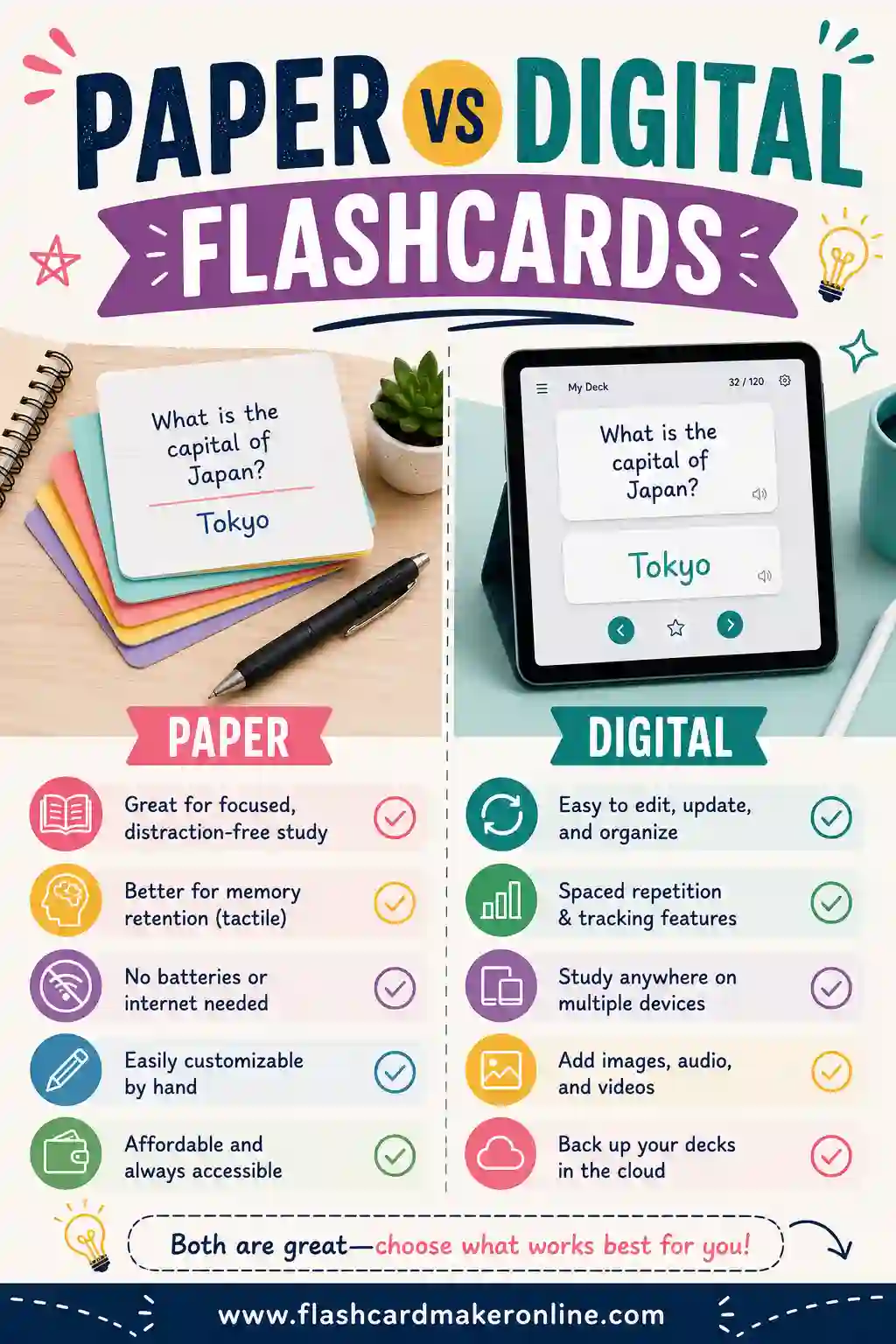
Printing your own cards is one of the best ways to combine digital convenience with paper focus. For more on that trade-off, our paper vs digital flashcards guide compares both head to head.
Common Printing Problems and How to Fix Them
A few snags trip people up the first time they print cards. None are hard to fix once you know what's going on:
- Cards print one per page. This usually means the layout is set to a single large card. Use a maker that lays out a grid, or switch your print setting to "multiple pages per sheet." A grid layout fits 6 to 10 cards on a page.
- The text gets cut off at the edges. Your printer's margins are clipping the design. Choose "fit to page" or "shrink to printable area" in the print dialog, then run one test sheet to confirm.
- Backs land on the wrong card. When double-siding, your printer's flip direction matters. If answers come out upside down or shifted, switch between "flip on long edge" and "flip on short edge" and reprint a single test page.
- Colors look washed out. Low ink or an eco/draft mode is to blame. Switch to normal or best quality, and remember that plain black-and-white cards read perfectly well and save ink.
- Cards feel flimsy. Standard paper bends and tears with handling. Move up to cardstock — it's the single biggest upgrade for durability.
The fix for almost all of these is the same: print one test card before you commit to a full stack. Thirty seconds of checking saves a wasted sheet and a lot of frustration.
When Printable Cards Beat Digital Ones
Even in a world of apps, there are moments where a printed deck simply works better:
- Right before a big exam. A screen-free review the night before keeps you off your phone and away from distractions.
- For young learners. Kids handle, sort, and flip physical cards naturally, and there's no screen-time worry.
- In a classroom. A printed class set means no devices to manage and no logins to chase. For more, see our flashcards for teachers guide.
- When you study in a group. Passing physical cards around a table is easier than crowding around one phone.
- Anywhere screens feel rude or impractical. A library, a quiet study hall, a flight, or a spotty-wifi corner.
That's the quiet strength of a printable maker: it gives you a deck that works when the battery's dead and the wifi's gone.
Frequently Asked Questions
What is the best free printable flashcard maker?
For most people, a free browser-based flashcard maker is the best choice because there's no sign-up, no watermark, and it prints a clean grid of cut-ready cards in minutes. Word or Google Docs templates work if you want full design control, and Avery templates are best if you buy their snap-apart card stock.
Can I print flashcards without an account?
Yes. A no-sign-up flashcard maker lets you type your terms and print immediately without registering. Some tools, like Quizlet, ask you to create an account before printing, so if you want zero hoops, pick one that skips registration.
How do I print double-sided flashcards?
Build your deck in a maker that supports double-sided printing, then choose "print on both sides" in your printer settings. Run one test sheet first to confirm each definition lines up on the back of the right card — flip-on-short-edge versus long-edge can shift the alignment.
What paper should I use for printable flashcards?
Cardstock is the best choice because it's sturdy, doesn't bleed through, and survives repeated shuffling. Standard printer paper works for a quick or one-time deck. If you want reusable cards, print on cardstock and laminate or slip them into clear sleeves.
Are printable flashcards as good as apps?
They're great for focus and screen-free study, and the handwriting or cutting can even help you process the material. Apps win on portability and automatic scheduling. The best of both worlds is to build one deck in a free tool, study it on screen during the week, and print it for a focused review before a test.
Ready to Print Your Flashcards?
You don't need fancy software to make great study cards. Open the free flashcard maker, type your terms and definitions, and print a clean, ready-to-cut set in minutes. It's free, there's no sign-up, and no watermark gets stamped on your cards. Pick your words, run a test page, and you'll have a printable deck ready for your next study session.