Double-Sided Flashcard Printing: How to Get the Backs to Line Up
Double-sided flashcard printing puts the term on the front and the answer on the back of the same card, so you flip a real card instead of two loose sheets. The key to getting the backs to line up is choosing the right "flip edge" in your printer's duplex settings, almost always "flip on long edge", and always running a test page first. The easiest way to avoid alignment headaches is a free flashcard maker that arranges the fronts and backs to match automatically.
Tired of backs printing upside down or shifted? Open the free flashcard maker, enter your term-and-answer pairs, and print a duplex-ready layout that lines up. No sign-up, no manual flipping.
Why Double-Sided Cards Are Worth It
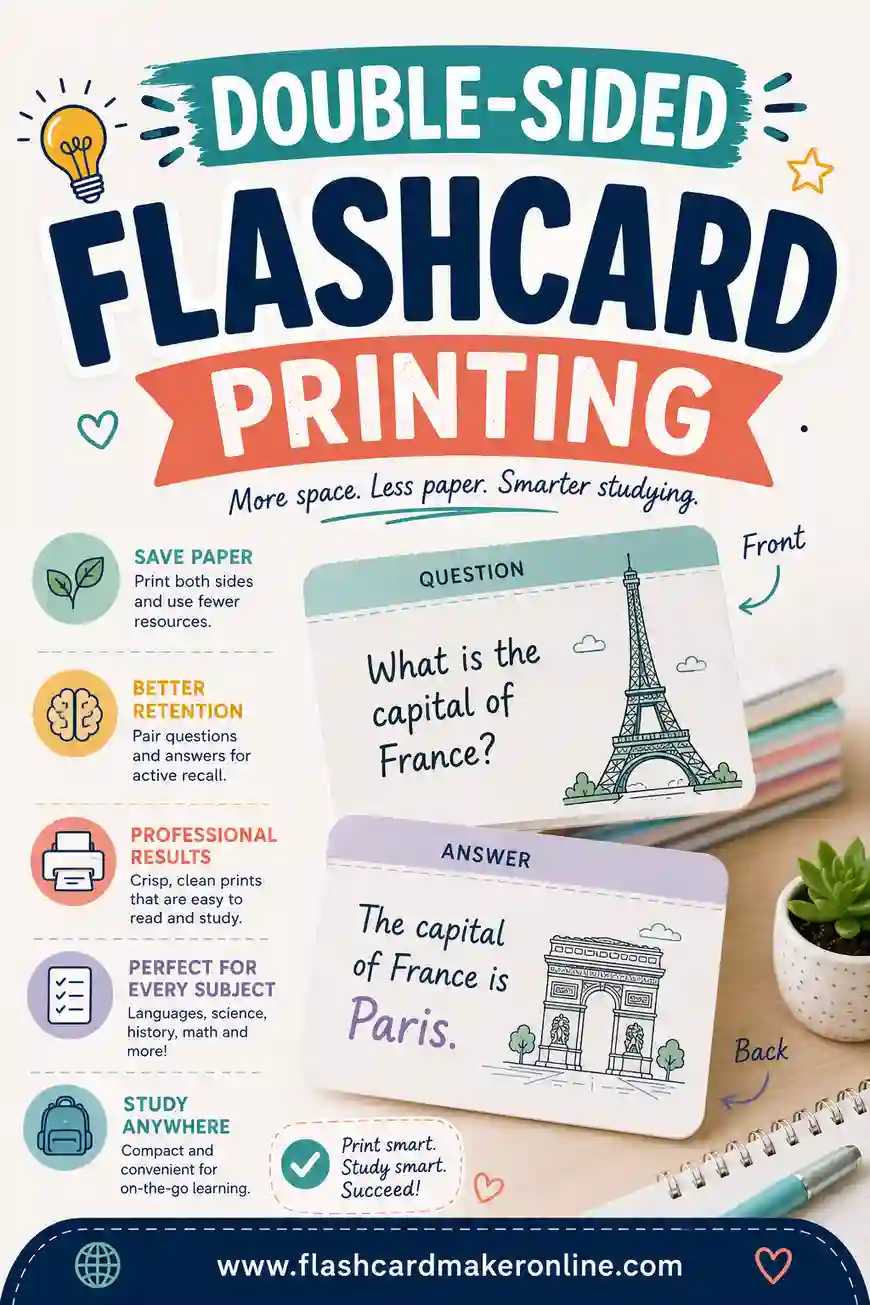
Single-sided flashcards work, but double-sided cards are the real deal. The term sits on one side, the answer on the other, and you flip a single sturdy card. That's exactly how flashcards are meant to work, and it supports the two habits that make them effective: active recall and self-testing.
When you see only the term, your brain has to pull the answer out before you flip. That retrieval effort is what builds memory. With two separate sheets, it's too easy to peek at the answer, and the whole point gets lost.
Double-sided cards are also tidier. One card instead of two means half the cutting and half the chance of losing a piece. The only catch is alignment, and that's what the rest of this guide solves.
Automatic vs. Manual Duplex
Your printer does double-sided printing one of two ways.
- Automatic (auto-duplex). The printer flips the paper for you and prints the second side. Many newer printers have this. Look for a "Print on Both Sides" or "Two-Sided" option in the print dialog.
- Manual duplex. You print the first side, then reload the stack to print the second side yourself. Older or budget printers need this.
Both work fine. Automatic is faster and less error-prone, but manual gives you total control, which actually helps with cardstock that some auto-duplex units can't handle. We'll cover both below.
The One Setting That Matters Most: Flip Edge
This is the setting that makes or breaks your cards. When you turn on two-sided printing, you'll see a choice between two flip options:
- Flip on long edge (sometimes "long-edge binding")
- Flip on short edge (sometimes "short-edge binding")
For flashcards laid out in portrait, you almost always want flip on long edge. This keeps the backs right-side up and behind their matching fronts. Choose short edge by mistake and your backs print upside down.
| Layout | Use this flip edge | Result |
|---|---|---|
| Portrait cards | Long edge | Backs upright and aligned |
| Landscape cards | Short edge | Backs upright and aligned |
If your first test comes out upside down, just switch to the other flip edge and reprint. It's the single most common fix.
Step-by-Step: Automatic Duplex
If your printer flips the paper for you, here's the clean process.
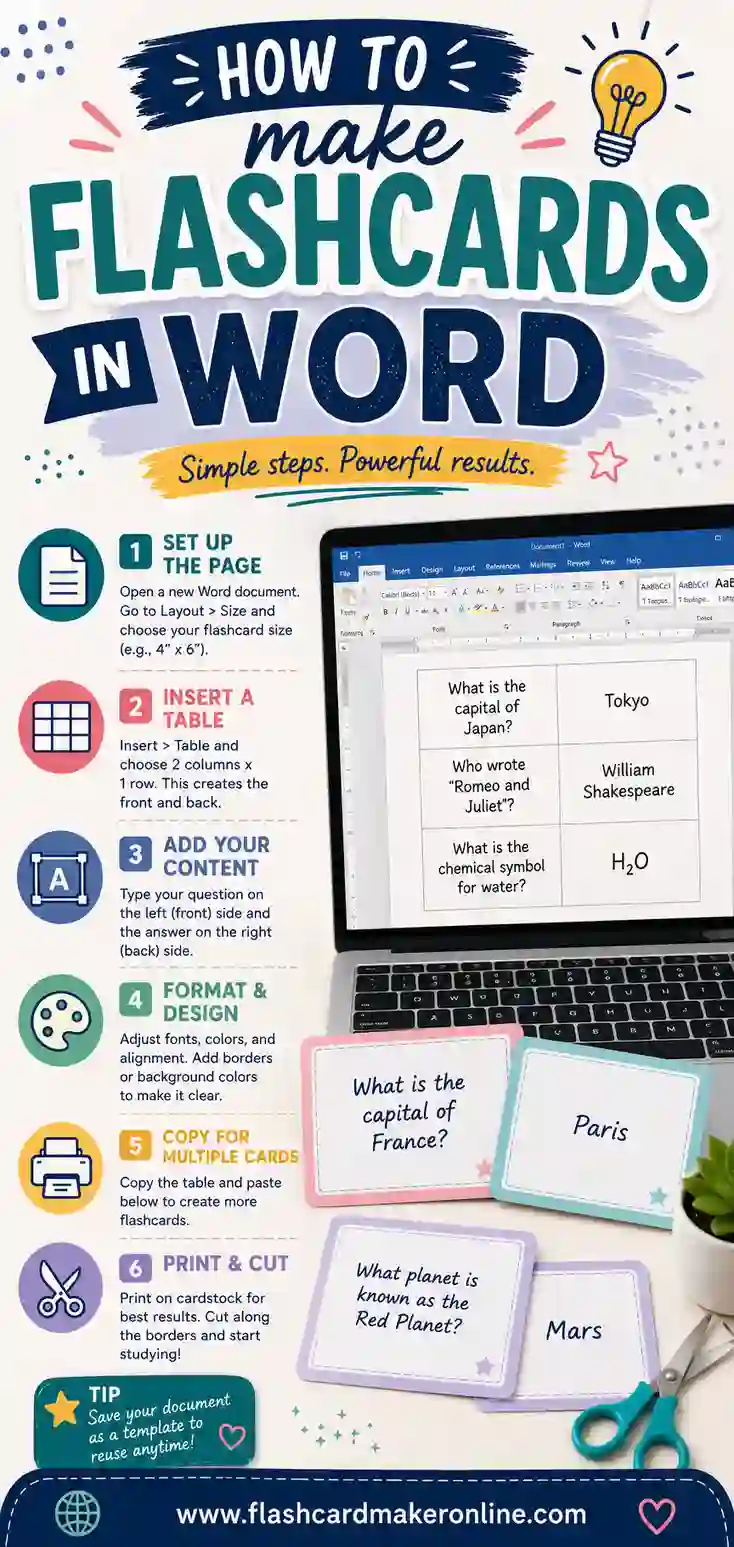
- Build your front-and-back pairs. A flashcard maker keeps each term lined up with its answer so the layout matches.
- Open the print dialog and set scale to 100% (turn off "Fit to Page").
- Turn on "Print on Both Sides."
- Choose "Flip on long edge" for portrait cards.
- Print one test page on plain paper. Hold it to the light and check that each back sits behind its front.
- Load cardstock and print the full deck.
- Cut along the guide lines.
If the test page lines up, you're golden. If not, the next two sections show what to tweak.
Step-by-Step: Manual Duplex
No auto-duplex? No problem. You'll print one side, flip the stack, and print the other.
- Print all the front sides on your cardstock.
- Note the orientation. Watch which way the printed sheets come out (face up or face down) and which edge feeds first.
- Reload the stack to print on the blank side. The trick is figuring out whether to flip top-to-bottom or just turn the pages over. This is where the test page is essential.
- Print one back page and check alignment before doing the whole batch.
- Adjust and reprint the test until the backs sit right.
- Run the full deck, then cut.
Manual duplex takes a couple of test pages to dial in for your specific printer, but once you know the flip, you can repeat it every time.
How to Fix Misaligned Backs
Even with the right flip edge, backs can drift a little. Here's how to chase down each problem.
| Symptom | Cause | Fix |
|---|---|---|
| Backs are upside down | Wrong flip edge | Switch long edge ↔ short edge |
| Backs are shifted sideways | Paper not seated in the tray | Square up the stack, push it to the guide |
| Backs are slightly off-center | Auto-duplex tolerance | Add a margin; reprint at 100% |
| Backs are on the wrong cards | Page order flipped on reload | Re-check your manual-duplex flip |
| Second side is faint | Low ink or wrong side printed | Reprint; confirm you printed the blank side |
The two big ones are flip edge (for upside-down backs) and a small margin (for slight shifts). Leaving a quarter-inch border around each card gives a little forgiveness so minor drift never clips your text.
Sample Deck: A 20-Card Double-Sided Set
Here's a multiplication set that's perfect for double-sided cards. The fronts are problems; the backs are answers.
| Term (front) | Definition (back) |
|---|---|
| 6 x 7 | 42 |
| 8 x 9 | 72 |
| 7 x 7 | 49 |
| 9 x 6 | 54 |
| 8 x 8 | 64 |
| 7 x 8 | 56 |
| 9 x 9 | 81 |
| 6 x 8 | 48 |
| 7 x 9 | 63 |
| 6 x 6 | 36 |
| 12 x 12 | 144 |
| 11 x 11 | 121 |
| 9 x 8 | 72 |
| 7 x 6 | 42 |
| 8 x 12 | 96 |
| 9 x 12 | 108 |
| 11 x 9 | 99 |
| 12 x 7 | 84 |
| 8 x 11 | 88 |
| 6 x 12 | 72 |
| 7 x 11 | 77 |
| 9 x 11 | 99 |
| 12 x 6 | 72 |
| 8 x 7 | 56 |
Print the fronts, flip with long-edge binding, and the answers land right behind each problem. Cut, shuffle, and you've got a self-testing deck.
Tips for Cleaner Double-Sided Cards
A few habits make duplex printing painless.
- Always print a test page. It's the golden rule. One sheet saves a whole batch of cardstock.
- Use a heavier cardstock. Thin paper lets the back show through the front, which is distracting when you're testing yourself.
- Keep a small margin. A quarter inch around each card absorbs minor alignment drift.
- Print the fronts and backs in the same job when you can, so the order never gets scrambled.
- Match your flip edge to your layout. Portrait gets long edge; landscape gets short edge.
Do these once and double-sided printing becomes routine. The first deck takes a test page or two; every deck after that just works.
When to Skip Double-Sided
Double-sided isn't always the move. Skip it if:
- Your printer struggles with thick cardstock in duplex mode. Print single-sided and glue or tape fronts to backs, or just print fronts and backs on separate sheets to fold.
- You want students to write answers themselves. Blank backs let learners fill in the answer as a study exercise.
- You're in a rush. Single-sided is faster to set up when you don't need a flip-card feel.
There's no wrong choice. Double-sided makes the most polished deck, but single-sided cards study just fine.
The Fold-Over Trick (No Duplex Needed)
If duplex is fighting you, here's a clean workaround that needs zero special settings. Lay out each card so the front and the back sit side by side on the same side of the paper, with a fold line between them. Print single-sided, cut out each pair, fold along the middle, and glue the two halves together. Now you've got a stiff double-sided card with the front and back perfectly aligned, because they printed together and never left the same sheet.
This takes a little more cutting and a glue stick, but it sidesteps every alignment headache. It's also great for thicker, sturdier cards, since folding doubles the paper weight. For a small deck or a stubborn printer, the fold-over method is often the fastest route to clean double-sided cards.
Test Page Without Wasting Cardstock
You'll run a few test pages dialing in the flip, and cardstock is the expensive part. So test on plain paper, not cardstock. Plain paper feeds the same way for alignment purposes, and you only need to confirm two things: that the backs are right-side up and that each back sits behind its front.
To check alignment fast, hold the test sheet up to a window or a lamp. The light shows both sides at once, so you can see in a second whether the backs land where they should. Once a plain-paper test passes, load your cardstock with confidence. This one habit saves a surprising amount of expensive paper over time.
Double-Sided for Self-Testing: Why the Flip Matters
The whole reason double-sided cards beat two loose sheets comes down to one moment: the flip. When the answer is hidden on the back, you're forced to retrieve it from memory before you turn the card. That retrieval, the small struggle to recall, is what actually strengthens the memory.
Build the pause into your routine
Make the flip a deliberate beat. Read the front, say your answer out loud, then flip. Don't let your eyes drift to a separate answer sheet. The hidden back removes the temptation to peek, which is exactly why double-sided cards are worth the extra printing fuss.
Sort as you go
Because each card is self-contained, you can sort them on the fly. Cards you nail go in a "later" pile; cards you miss stay in rotation. A double-sided deck makes this sorting effortless, since the answer travels with the question on a single card you can toss into either stack.
Frequently Asked Questions
How do I print double-sided flashcards so the backs line up?
Set your printer to "Print on Both Sides," choose "Flip on long edge" for portrait cards, and print at 100% scale. Always run one test page first to confirm the backs sit behind their fronts. If they print upside down, switch to "Flip on short edge" and reprint.
Why do my flashcard backs print upside down?
You've likely chosen the wrong flip edge. For portrait-layout cards, use "Flip on long edge"; for landscape cards, use "Flip on short edge." Switching to the other option and reprinting a test page almost always fixes upside-down backs.
Can I print double-sided flashcards without an auto-duplex printer?
Yes. Print all the fronts first, then reload the stack and print the backs on the blank side. The tricky part is the flip direction when you reload, so print one back page and check alignment before running the full batch. Once you know the flip, you can repeat it.
What flip setting should I use for flashcards?
For portrait-oriented cards, use "Flip on long edge" (long-edge binding). For landscape-oriented cards, use "Flip on short edge." This keeps the answer on the back right-side up and aligned with the term on the front.
Why are my double-sided cards slightly off-center?
Small shifts happen with auto-duplex printers due to paper-feed tolerance. Leave a quarter-inch margin around each card so minor drift never clips your text, square up the paper in the tray, and print at 100% scale. A small margin gives the forgiveness you need.
How can I make double-sided cards without a duplex printer?
Use the fold-over method. Lay the front and back side by side on the same side of the sheet with a fold line between them, print single-sided, then cut, fold, and glue each pair. The two halves printed together, so they line up perfectly, and folding makes a stiffer card. No duplex setting required.
Should I test on cardstock or plain paper?
Test on plain paper. It feeds the same way for checking alignment, and it's far cheaper than wasting cardstock on trial runs. Hold the test sheet up to a light to see both sides at once and confirm the backs are upright and aligned. Once a plain-paper test passes, switch to cardstock for the real deck.
Ready to Print Double-Sided Flashcards?
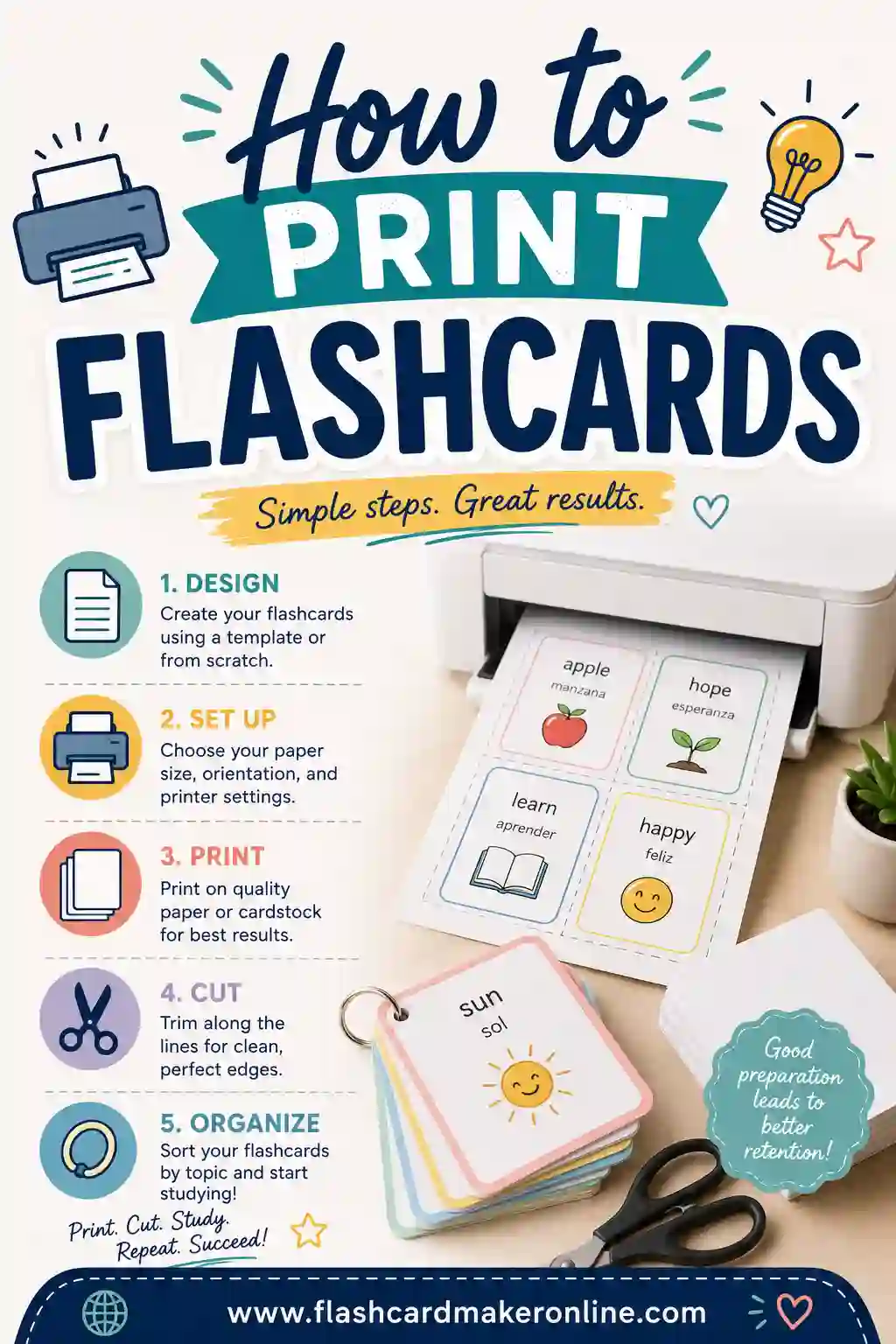
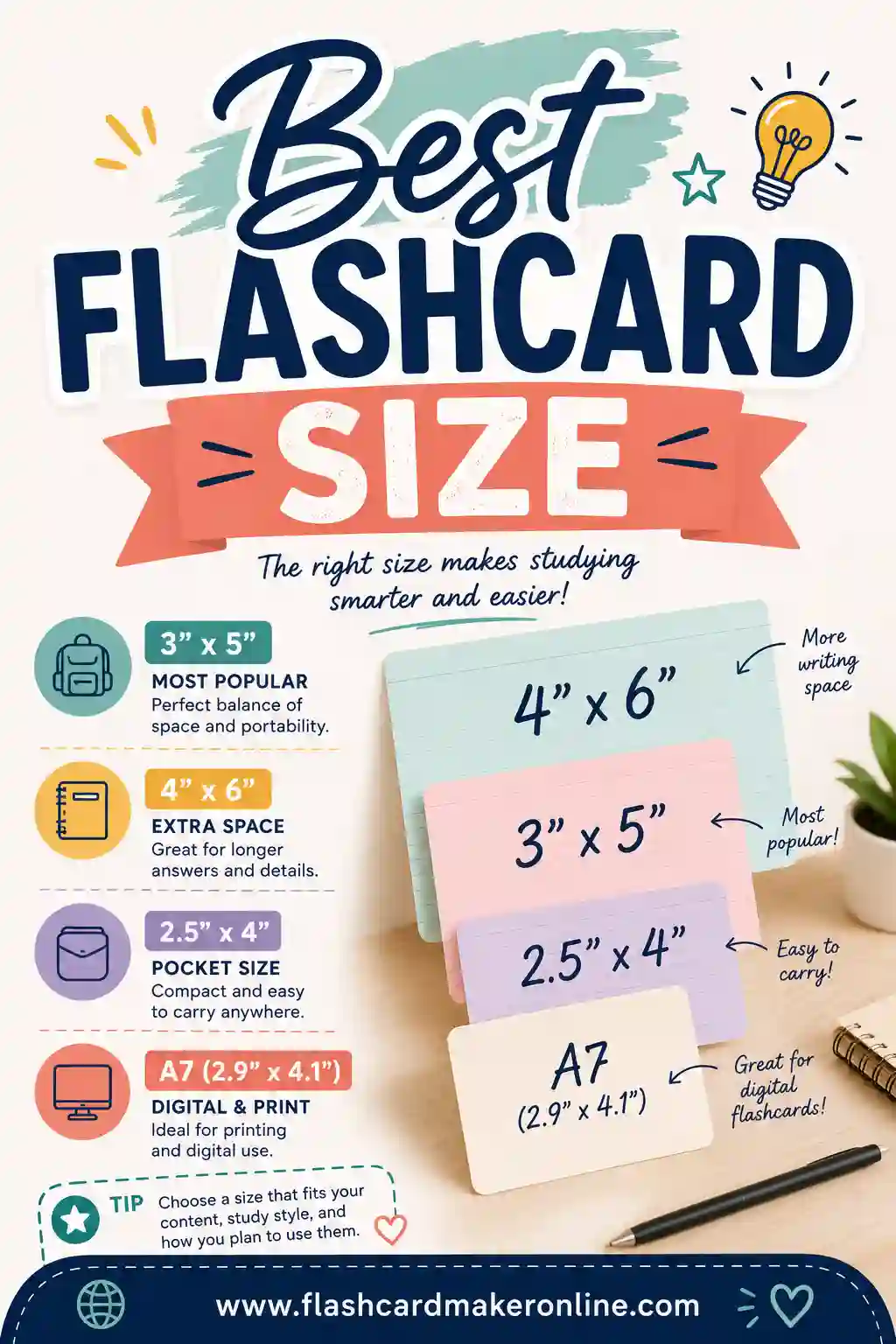
Double-sided cards give you the real flip-and-recall experience, and getting the backs to line up comes down to the right flip edge and a quick test page. When you're ready, open the free flashcard maker, enter your front-and-back pairs, and print a duplex-ready layout that lines up. It's free, there's no sign-up, and you can reprint anytime. For more, see our guides on how to print flashcards and the best flashcard size.