How to Make Flashcards in Word (and a Faster Free Way)
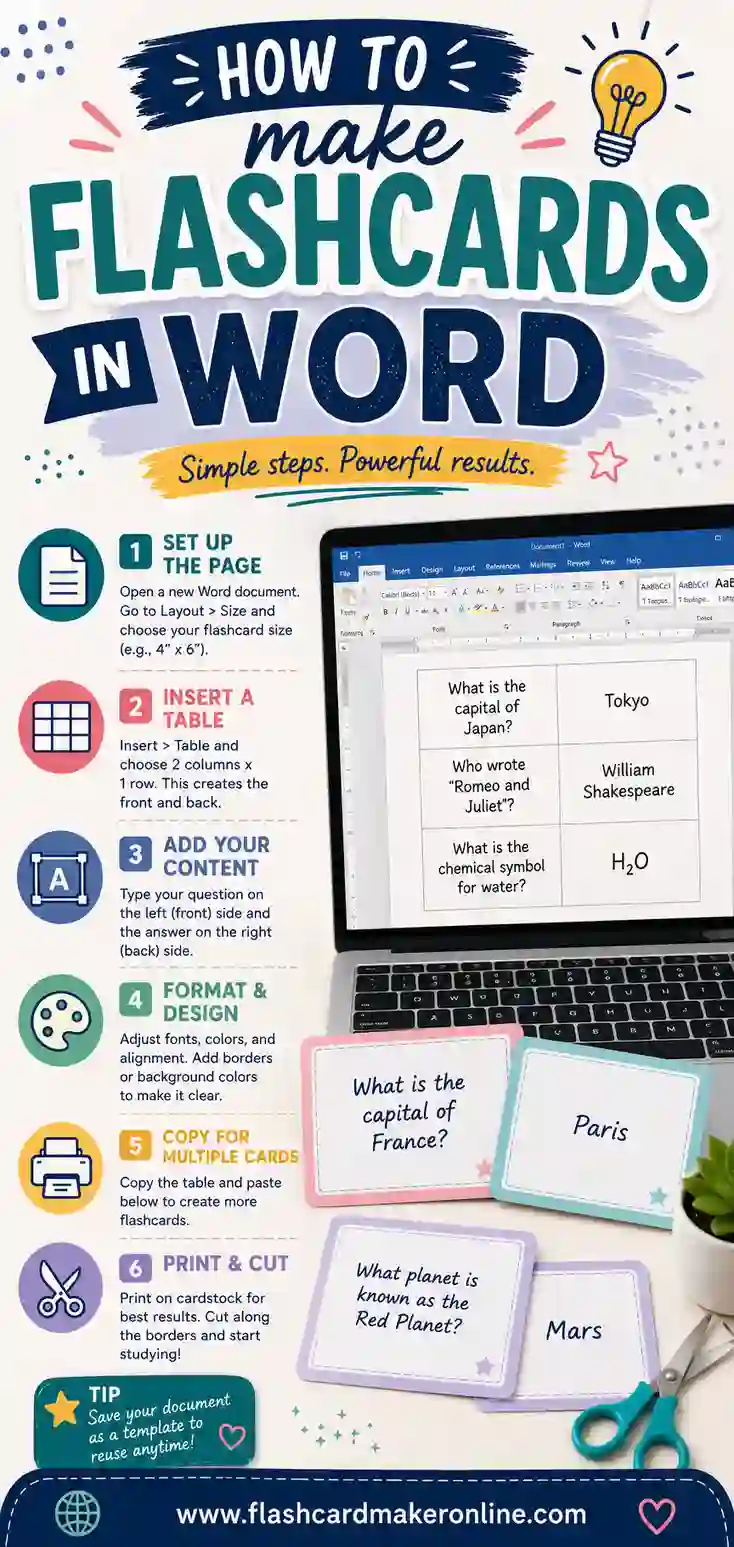
To make flashcards in Microsoft Word, insert a table with cells sized to your card dimensions, type one term per cell, and print. For double-sided cards, use Word's label templates or a second matching table for the answers. It works, but it's fiddly. If you'd rather skip the table wrestling, a free flashcard maker lays out clean, evenly sized cards for you in a fraction of the time.
Short on patience for tables and margins? Open the free flashcard maker, type your terms, and print a tidy, ready-to-cut sheet. No sign-up, no formatting battles.
Can You Make Flashcards in Word?
Yes, Word can make flashcards, and plenty of people do it. The program has tables, label templates, and even mail merge, which are all you need to lay out a deck. If Word is already open and you only need a few cards, it's a perfectly reasonable choice.
The honest catch is that Word wasn't built for this. You'll spend time sizing cells, fixing rows that won't stay put, and lining up backs for double-sided printing. For a handful of cards it's fine. For a big, polished deck, a purpose-built flashcard maker saves real time. We'll show you both paths so you can pick.
Method 1: Make Flashcards with a Table
This is the most common way. You build a grid where each cell is one card.
- Open a new document and set your page to Letter (8.5 x 11) with narrow margins.
- Insert a table. Go to Insert > Table and pick a grid, for example 2 columns by 4 rows, which gives you eight cards at roughly 3 x 5 size.
- Set the cell size. Right-click the table, choose Table Properties, and set a fixed row height and column width to match your card size. Turn off "Automatically resize to fit contents" so cells stay put.
- Type one term per cell. Center the text and bump the font up so it's readable.
- Add cell padding so text doesn't crowd the edges. Table Properties > Options > set the cell margins.
- Print, then cut along the cell borders.
That's a single-sided deck. The font, alignment, and padding are all yours to control, which is the upside. The downside is that every adjustment is manual.
Method 2: Use Word's Label Templates
If you have perforated index-card sheets or label stock, Word's label templates align to them automatically.
- Go to Mailings > Labels (or Mailings > Start Mail Merge > Labels).
- Pick a product number that matches your card or label sheet. Avery makes several card-size templates Word recognizes.
- Word builds a table sized to that product. Now you just type into each card slot.
- Print onto the matching sheet.
This is cleaner than building a table from scratch because the spacing is pre-set. The catch is that you need label stock whose product number Word knows, which not everyone has on hand.
Method 3: Double-Sided Cards in Word
Getting answers on the back is the trickiest part in Word. Here's the reliable approach:
- Build the front table with your terms.
- Add a second page with an identical table for the answers.
- Mirror the order carefully. The top-left answer must match the top-left term, and so on. Many people reverse the column order on the back so it lines up after the flip.
- Print double-sided, choosing "Flip on long edge" for portrait pages.
- Run a test page first to confirm each back sits behind its front.
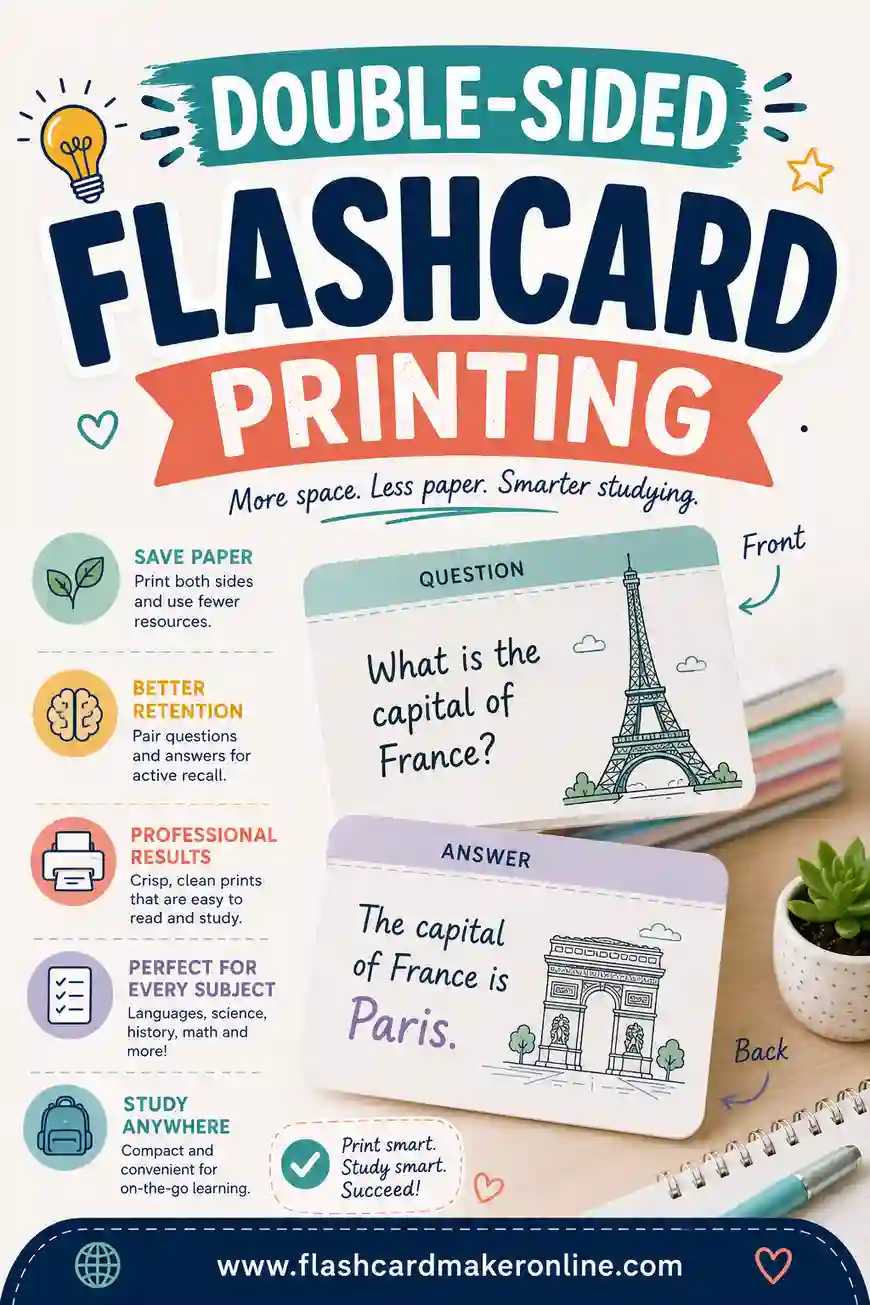
This takes patience and usually a test page or two. If double-sided cards are your main goal, our dedicated guide on double-sided flashcard printing walks through the alignment in depth, and a flashcard maker handles the front-to-back matching for you.
Method 4: Mail Merge for Big Decks
If you already have your terms in a spreadsheet, mail merge can pour them into cards in one move.
- Put your terms and definitions in a spreadsheet, one column each.
- In Word, start a label mail merge and pick a card-size template.
- Insert merge fields for the term (and definition, if you want both on one side).
- Finish the merge to generate a full sheet of cards.
- Print and cut.
Mail merge is powerful for large sets because you don't retype anything. The setup has a learning curve, though, so it's best when you're making hundreds of cards and already keep your list in a spreadsheet.
Word vs. a Dedicated Flashcard Maker
Both get you a printed deck. Here's an honest comparison so you can choose.
| Microsoft Word | Free flashcard maker | |
|---|---|---|
| Setup time | Slow (build and size tables) | Fast (type and go) |
| Even card sizes | Manual, easy to break | Automatic |
| Double-sided alignment | Fiddly, needs test pages | Handled for you |
| Cost | Needs Word | Free, in your browser |
| Best for | A few cards, full font control | Clean decks of any size, fast |
Word makes sense when you want total control over fonts and design, or you only need a handful of cards. A flashcard maker wins when you want a clean, even deck quickly and don't want to babysit a table. Many people use Word once, hit the formatting pain, and switch.
Sample Deck: A 20-Card Set to Build
Here's a science vocabulary set you can drop into either Word or the tool.
| Term | Definition |
|---|---|
| Atom | The smallest unit of an element |
| Molecule | Two or more atoms bonded together |
| Cell | The basic unit of life |
| Photosynthesis | How plants turn light into energy |
| Gravity | The force that pulls objects together |
| Energy | The capacity to do work |
| Element | A pure substance made of one kind of atom |
| Compound | A substance made of two or more elements |
| Ecosystem | A community of living things and its environment |
| Evolution | Change in species over generations |
| Mitosis | Cell division that makes two identical cells |
| DNA | The molecule that carries genetic code |
| Force | A push or pull on an object |
| Mass | The amount of matter in an object |
| Velocity | Speed in a given direction |
| Density | Mass divided by volume |
| Acid | A substance with a pH below 7 |
| Base | A substance with a pH above 7 |
| Friction | The force that resists motion between surfaces |
| Inertia | An object's resistance to a change in motion |
| Atom number | The count of protons in an atom |
| Solute | The substance that dissolves in a solution |
| Solvent | The substance that does the dissolving |
| Catalyst | A substance that speeds up a reaction |
Twenty-four cards like these fit on a few pages. In Word, you'd build a table and type each one in; in the tool, you paste the list and it lays them out for you.
Tips for Better Word Flashcards
If you stick with Word, a few tweaks make the result cleaner:
- Turn off auto-resize. Lock your row height and column width so cells don't grow as you type.
- Center everything. Center text horizontally and vertically in each cell for a tidy look.
- Use a big, simple font. Something like 18–24 pt Arial reads well across the room.
- Add light cell borders as cut guides, or turn borders off and use the table gridlines just on screen.
- Save a template. Once you size one table nicely, save it so you don't rebuild it next time.
These cut down the busywork, though they won't fully erase the formatting fiddliness that comes with the territory.
The Word Headaches Nobody Warns You About
If you've made cards in Word before, some of these will sound familiar. Knowing them ahead of time saves a lot of frustration.
- Rows that grow on their own. Type a long definition and the cell stretches, shoving every card below it out of alignment. The fix is locking row height, but it's easy to forget until the page is a mess.
- The table that won't break cleanly across pages. A row can split awkwardly at a page edge, leaving half a card at the bottom and half at the top. You end up nudging spacing by hand.
- Backs that drift on the second page. Your front table and answer table look identical on screen, but tiny margin differences mean they don't line up once printed.
- Fonts that shift between computers. Open the file on another machine and the spacing changes, throwing off your sizes. This bites people who build at home and print at school.
None of these are dealbreakers, but together they're why a quick "I'll just use Word" can turn into an hour of fiddling. A flashcard maker sidesteps all four because the layout is fixed for you.
When Word Really Is the Right Tool
This guide is honest about Word's friction, but it genuinely shines in a few cases, and it's worth knowing them.
You need heavy custom design
If you want a specific font, a logo, colored headers, or a particular layout per card, Word gives you full control that a simple maker doesn't. For a polished classroom handout where look matters, that control is the point.
You're only making a handful
For five or ten cards, the table setup is quick and you skip learning any new tool. When the deck is tiny, Word's overhead barely registers.
Your content already lives in Word
If your terms are already typed up in a Word document, building the table right there saves a copy-paste step. Sometimes the fastest path is the one that's already open.
The rule of thumb: Word wins for small, design-heavy, one-off decks. A dedicated maker wins the moment you want a clean, even deck of any real size, fast.
A Faster Word Workflow: Build Once, Reuse Forever
If you're committed to Word, the single best time-saver is to stop rebuilding from scratch. Set up one table exactly the way you like it: right card size, locked rows, centered text, your chosen font and padding. Then save that document as a template.
Next time you need cards, open the template, clear the old text, and type the new terms straight into the ready-made grid. All the sizing and alignment work is already done. You go from a blank page and twenty minutes of setup to just typing your content. It's the closest Word gets to the type-and-go speed of a dedicated tool, and it pays off every deck after the first.
Flashcard Sizes in Word: 3 x 5, 4 x 6, and 8 per Page
Most of the trouble with Word flashcards starts with picking a size that doesn't fit the page well. Use this chart to set up your table before you type a single term. All of the layouts assume a standard Letter page (8.5 x 11 inches) with 0.5-inch margins, which leaves a 7.5 x 10 inch area to work with.
| Card size | Page orientation | Table grid | Cards per page | Cell settings |
|---|---|---|---|---|
| 3 x 5 in (classic index card) | Portrait | 2 columns x 2 rows | 4 | Column width 3 in, row height exactly 5 in |
| 4 x 6 in (large index card) | Landscape | 1 column x 2 rows | 2 | Column width 6 in, row height exactly 4 in |
| About 3.75 x 2.5 in | Portrait | 2 columns x 4 rows | 8 | Column width 3.75 in, row height exactly 2.5 in |
| About 3.75 x 2 in | Portrait | 2 columns x 5 rows | 10 | Column width 3.75 in, row height exactly 2 in |
| About 2.5 x 2.5 in (small squares) | Portrait | 3 columns x 4 rows | 12 | Column width 2.5 in, row height exactly 2.5 in |
A few notes on reading the chart:
- "Exactly" matters. In Table Properties > Row, set "Row height is" to Exactly, not At least. "At least" lets a row grow when the text runs long, which is the number-one reason cards drift out of line.
- 8 per page is the sweet spot for vocabulary and quick facts. The cards are big enough for a 16 to 20 pt term and still give you a full deck from just a few sheets of paper.
- 3 x 5 and 4 x 6 fit index-card stock. If you print on real index cards, set Layout > Size to the card size itself (for example 5 x 3 inches) and skip the table, so each card prints as its own "page." Check that your printer can feed paper that small first.
- Leave room for cutting. If your printer can't print close to the edge, bump the margins up to 0.6 or 0.75 inch and shrink the cells slightly. A card that's a hair smaller is better than a border that gets cut off.
Not sure which size suits your subject? Our guide to the best flashcard size compares them by how much text each one holds comfortably.
Set Up Your Own Word Flashcard Template in Two Minutes
Instead of hunting for a template file, you can build a reusable one in Word that matches your printer and paper exactly. This version makes 8 cards per Letter page, which is the layout most students and teachers end up using.
- Start a blank document. Go to Layout > Margins > Custom Margins and set all four margins to 0.5 inch.
- Insert a 2 x 4 table. Insert > Table, then drag across two columns and four rows.
- Lock the size. Select the whole table, right-click, and open Table Properties. On the Row tab, check "Specify height," enter 2.5 inches, and set it to Exactly. On the Column tab, enter 3.75 inches. Under Table > Options, uncheck "Automatically resize to fit contents."
- Center the text both ways. With the table selected, use the Table Layout tab and click the middle alignment button so text sits in the center of each card, top to bottom and side to side.
- Pick a readable font. Choose a simple font at 18 to 20 pt for terms. You can always shrink individual cards that hold longer text.
- Add cut lines. Keep thin, light-gray borders so you can see where to cut, or use dashed borders from the Borders menu for a classic "cut here" look.
- Copy the table to page two for the answers, so the front and back pages are identical in size.
- Save it as a template. File > Save As, then choose Word Template (*.dotx) as the file type. Name it something like "Flashcards 8 per page."
From now on, opening that template gives you a fresh, untitled copy with the grid already sized. You type, print, and cut. If you also want a 4 x 6 version, repeat the steps with the landscape settings from the chart above and save it as a second template.
Make Flashcards in Word on Mac and Word Online
The table method works in every version of Word, but the menus move around a little depending on where you're working.
Word for Windows
Everything in this guide is written with the Windows desktop app in mind. Table Properties sits in the right-click menu and on the Table Layout tab, and Mailings > Labels gives you the full label and mail merge tools.
Word for Mac
The Mac desktop app has the same core tools with slightly different paths. Click inside your table and open the Table Layout tab, then choose Properties to reach row height, column width, and the auto-resize setting. Mailings > Labels is there too, so the label-template and mail merge methods both work. When you print double-sided, the two-sided option lives in the macOS print dialog. Look for a "Two-Sided" checkbox or the Layout section, and choose long-edge binding for portrait pages.
Word for the web (Word Online)
The free browser version of Word can insert tables and lets you type cards, but it has fewer layout controls than the desktop app, and mail merge isn't part of it. For quick, single-sided cards it's fine. If you need exact row heights, label templates, or a merge from a spreadsheet, use the "Open in Desktop App" option (if you have the desktop version) and finish there. Printing from the browser also hands the job to your browser's print dialog, so check that the scale is set to 100% rather than "fit to page," which can quietly shrink your cards.
Phones and tablets
The Word mobile apps are handy for typing terms into an existing template, but sizing a table on a small screen is painful. Build the template on a computer, then use your phone just to fill it in. If you mostly work on a phone, see our guide on how to make flashcards on your phone for easier options.
Print Double-Sided Flashcards That Line Up
Double-sided printing is where most Word decks go wrong. The method above gets the tables right; these settings and checks get the paper right.
Pick the right flip setting
- Portrait page (cards in a 2 x 4 grid): choose "Flip on long edge." The sheet turns like a book page, which swaps left and right. That's why the answer table needs its columns in reverse order: the answer for the top-left card goes in the top-right cell of the back page.
- Landscape page (for example 4 x 6 cards): choose "Flip on short edge." On a sideways page, the short edge is the one that acts like a book spine, so this setting keeps backs from printing upside down.
- No duplex printer? Print page one, put the printed sheet back in the tray, and print page two. Draw a small arrow on the first sheet before you reload it so you know which way it went in, because every printer feeds a little differently.
Run the hold-up test
Before you print the whole deck, print just the first front and back page on plain paper. Hold the sheet up to a window or a bright lamp. You should see each answer sitting inside the outline of its term. If everything is shifted the same amount in one direction, nudge the margins on the back page by that amount. If only the order is wrong, swap the columns. One test sheet usually saves a whole stack of wasted card stock.
The no-alignment option: fold-over cards
If lining up backs is more hassle than it's worth, skip double-sided printing entirely. Make a two-column table where the left cell holds the term and the right cell holds the answer, all on one side. Print it, cut each row into a strip, and fold it down the middle line so the term is on the front and the answer is on the back. A dashed center border makes a nice fold guide. Fold-over cards are a little thicker and need no second page at all, which makes them great for younger kids and for printers that don't do duplex well.
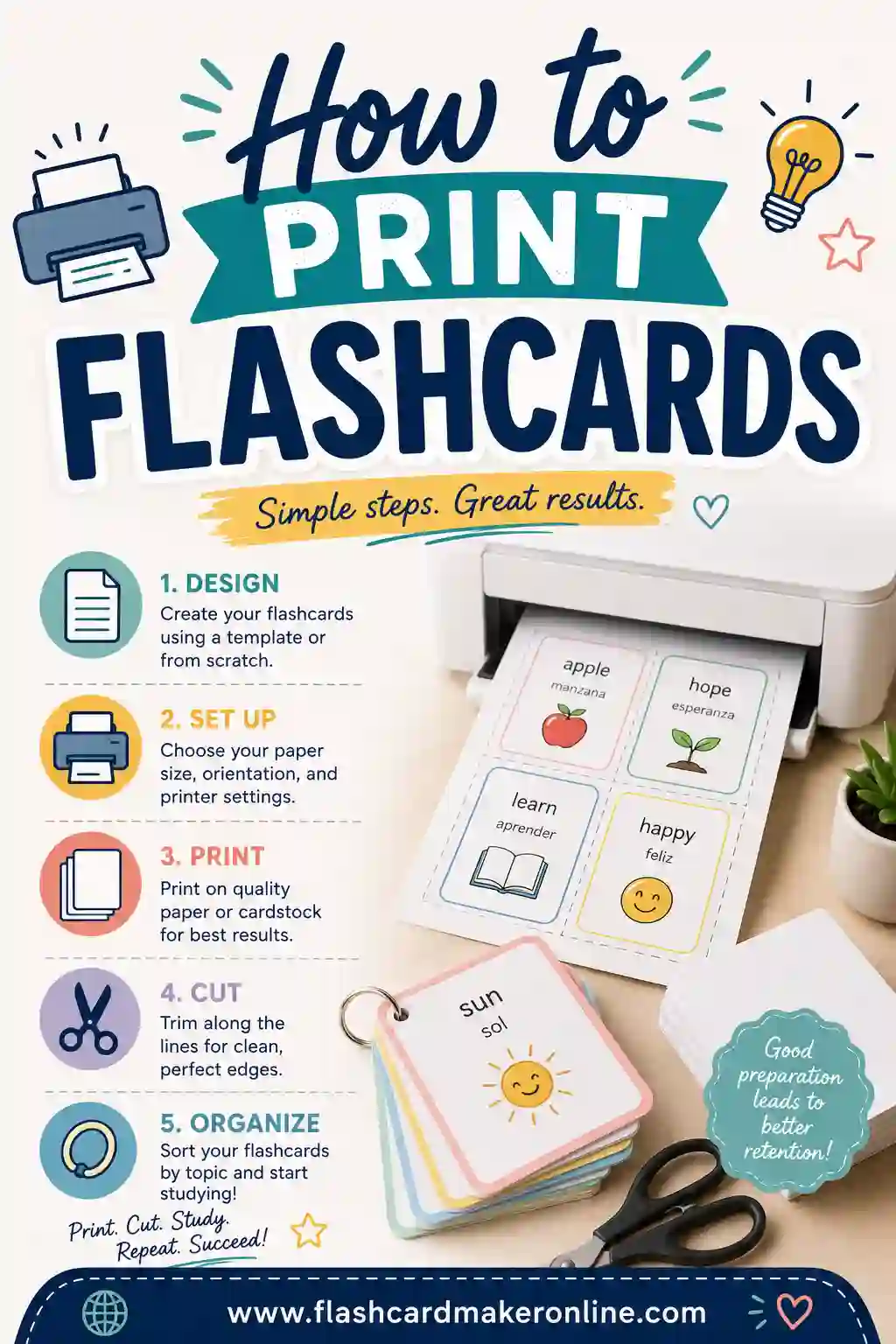
For more troubleshooting, our full guide to double-sided flashcard printing covers printer quirks in detail, and the free flashcard maker lines up fronts and backs automatically if you'd rather not test at all.
Frequently Asked Questions
How do I make flashcards in Microsoft Word?
Insert a table sized to your card dimensions (for example 2 columns by 4 rows for 3 x 5 cards), turn off auto-resize so cells stay fixed, type one term per cell, add cell padding, and print. For double-sided cards, build a matching answer table on a second page and print with "Flip on long edge."
Is there a flashcard template in Word?
Yes. Word's label templates (Mailings > Labels) include card-size options, and Avery sells card stock with product numbers Word recognizes. You can also search Word's online template gallery for flashcard templates, then type your terms into the preset layout.
How do I make double-sided flashcards in Word?
Create one table for the terms and a matching table on a second page for the answers, keeping the order aligned (often reversing the column order on the back so it lines up after the flip). Print double-sided with "Flip on long edge," and run a test page first to check alignment.
What is the easiest way to make flashcards?
The fastest way is a free flashcard maker: you type your terms and definitions, choose a size, and it lays out clean, evenly sized cards ready to print and cut. It skips the table sizing, padding, and back-alignment work that makes Word slow.
Can I make a lot of flashcards at once in Word?
Yes, using mail merge. Put your terms and definitions in a spreadsheet, start a label mail merge in Word, insert the merge fields, and generate a full sheet of cards in one step. It has a setup curve but saves retyping for large decks.
Why do my flashcard cells keep resizing in Word?
By default, Word tables auto-resize to fit their contents, so a long definition stretches the cell and pushes everything out of alignment. To fix it, right-click the table, open Table Properties, and turn off "Automatically resize to fit contents," then set a fixed row height and column width. That locks every cell to your card size.
Can I save a flashcard template in Word to reuse?
Yes, and you should. Set up one table with your size, locked rows, font, and padding exactly right, then save the document as a template. Next time, open it, clear the text, and type new terms into the ready-made grid. You skip all the setup and only type your content, which is the biggest time-saver in Word.
What size are flashcards in Word?
Word has no single "flashcard size," so you set it yourself with a table. The most common choices are 3 x 5 inches (four per portrait Letter page), 4 x 6 inches (two per landscape page), and roughly 3.75 x 2.5 inches when you want eight cards on one page. Set each row height to Exactly the card height so the size never changes as you type.
How do I print flashcards 8 per page in Word?
Set your margins to 0.5 inch, insert a table with 2 columns and 4 rows, and in Table Properties set the columns to 3.75 inches wide and the rows to exactly 2.5 inches tall. Turn off auto-resize, center the text, and print at 100% scale. Cut along the borders and you'll have eight even cards from every sheet.
Can I make flashcards in Word Online for free?
Yes, the free browser version of Word can insert a table and print simple cards. It has fewer table-sizing options than the desktop app and doesn't include mail merge, so it works best for small, single-sided decks. For exact sizing or double-sided sets, a desktop copy of Word or a free online flashcard maker is easier.
How do I make fold-over flashcards in Word?
Create a two-column table with the term in the left cell and the answer in the right cell of each row. Print it single-sided, cut the rows into strips, and fold each strip down the center line. The term ends up on the front and the answer on the back with no double-sided alignment needed.
Should I flip on the long edge or the short edge for flashcards?
Use "Flip on long edge" for portrait pages and "Flip on short edge" for landscape pages. With long-edge flipping on a portrait sheet, left and right swap on the back, so put your answer columns in reverse order. Always print one test page first and hold it up to a light to check the line-up.
Ready to Make Flashcards the Fast Way?
Word can absolutely make flashcards with tables, label templates, or mail merge, and it's worth knowing if you want full control over the design. But if you'd rather skip the sizing, padding, and back-alignment work, there's a quicker path. Open the free flashcard maker, type your terms, pick a size, and print a clean, ready-to-cut deck in minutes. It's free, there's no sign-up, and you can reprint anytime. For more, see our guides on how to print flashcards and how to organize flashcards.