How to Make Flashcards on Your Phone (Free and Easy)
To make flashcards on your phone, open a browser-based flashcard maker, type a question or term on the front of each card and its answer on the back, then tap to flip and study right there on screen. You don't need to install an app, create an account, or pay anything. Your deck is ready in a couple of minutes and goes everywhere your phone goes.
Want to start now? Open the free flashcard maker in your phone's browser, type in your terms (there's a ready-made sample deck below to copy), and start flipping. It works on iPhone and Android, no download required.
Why Make Flashcards on Your Phone?
Your phone is the one thing you always have on you, which makes it the perfect place to study in spare minutes. Waiting for a bus, standing in line, killing five minutes before class. Those little pockets of time add up, and flashcards are built for exactly that kind of quick, repeated review.
Phone flashcards also lean into how memory actually works. Short, frequent sessions beat one long cram, and a phone makes short sessions effortless. Pull it out, flip ten cards, put it away. Do that a few times a day and the facts start to stick without you ever sitting down for a marathon study block.
A few reasons the phone wins for flashcards:
- It's always with you, so review fits into dead time.
- A browser-based maker needs no install and no storage space.
- You can shuffle, edit, and add cards on the spot.
- The same deck prints from any device when you want paper.
App vs Browser: The Easiest Way
You don't need to hunt through an app store. The simplest route is a flashcard maker that runs in your phone's browser. Here's how the two paths compare.
| Dedicated app | Browser-based maker | |
|---|---|---|
| Install required | Yes, takes up space | No, opens instantly |
| Account needed | Often | No sign-up |
| Cost | Sometimes paid or ads | Free |
| Works on any phone | Only if available for your OS | Yes, any modern browser |
| Switch to a laptop later | Re-login or re-sync | Just open the same site |
| Print the deck | Sometimes | Yes, from any device |
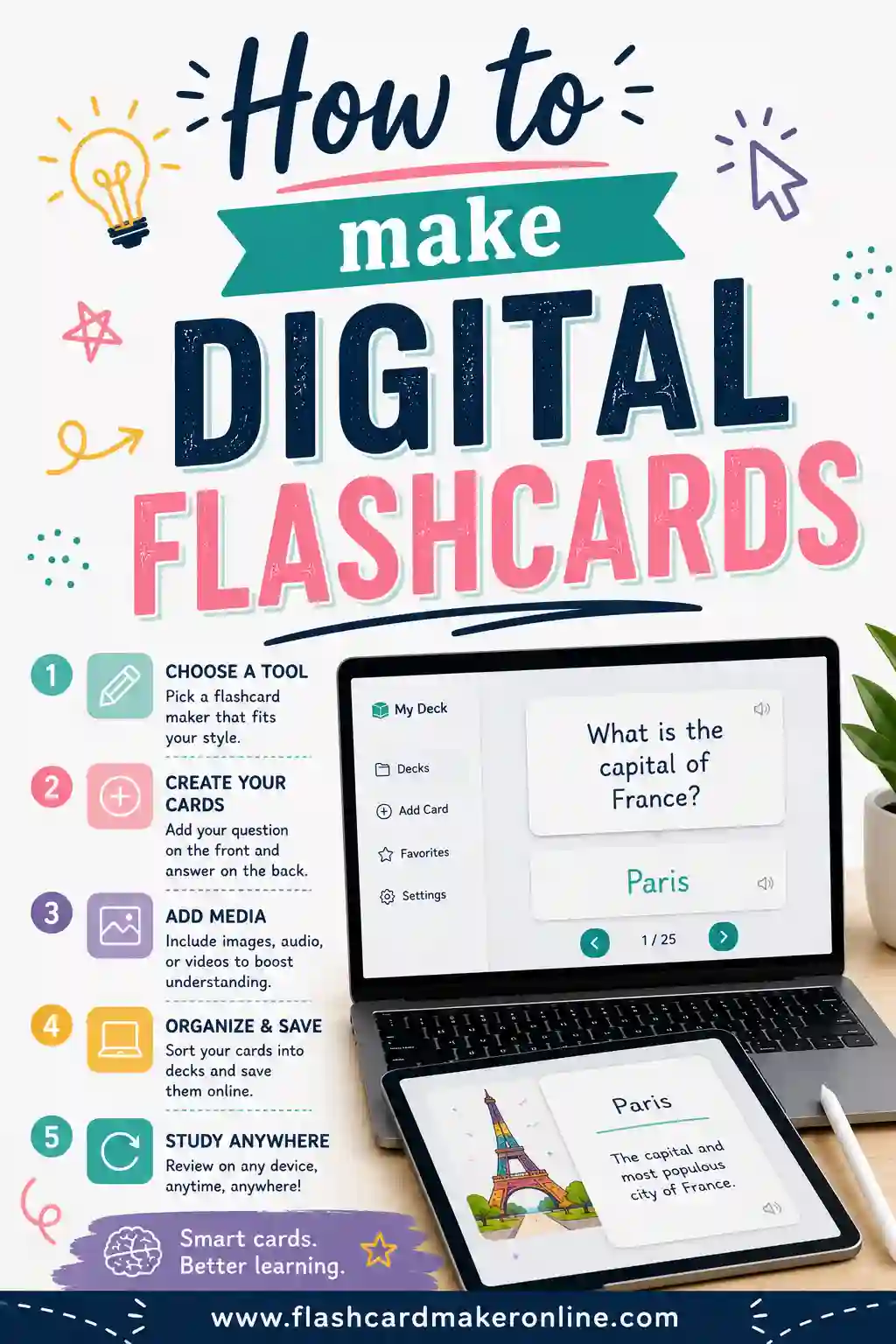
A browser tool keeps things simple: open the page, make your cards, study. No updates to download, nothing cluttering your home screen. If you later want to build a bigger deck on a computer, here's how to make digital flashcards on a laptop with the same approach.
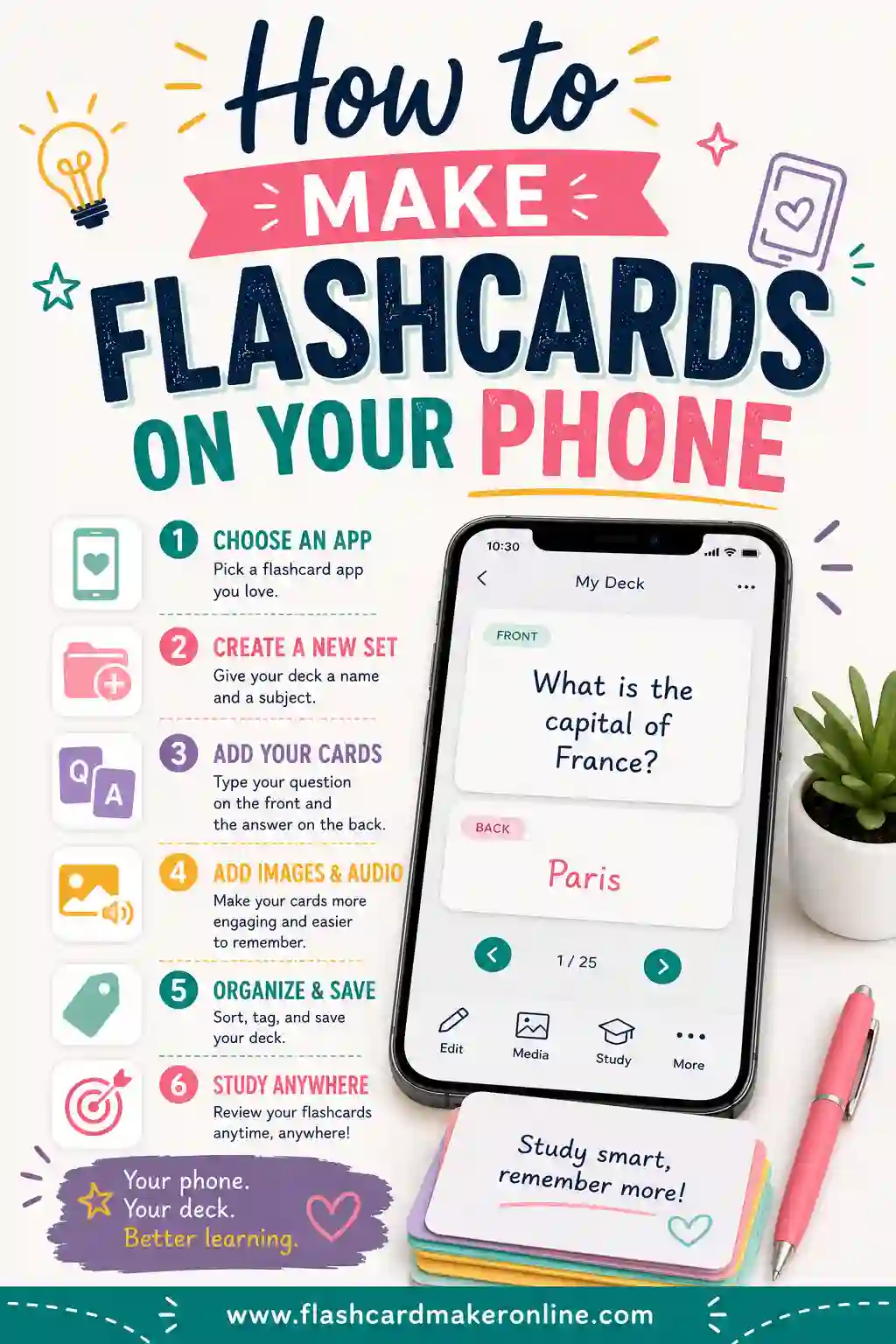
How to Make Flashcards on Your Phone in 5 Steps
The whole thing takes a few minutes. Here's the process.
1. Open the flashcard maker in your browser
Tap the browser on your phone (Safari, Chrome, or whatever you use) and go to the flashcard maker. It loads like any web page. No download, no waiting.
2. Type your first card
Enter a prompt on the front and the answer on the back. On a phone, keep your typing short. One word or one quick question per side is ideal, and it's also exactly what makes a good card.
3. Add the rest of your terms
Keep adding pairs until your deck covers what you need. If you have a list in your notes app, you can often copy and paste it straight in to save thumb-typing.
4. Tap to flip and study
Read the front, try to recall the answer, then tap the card to flip and check. Got it? Move on. Missed it? Keep that card in the rotation for another pass.
5. Shuffle, and print if you want
Shuffle the deck so you're not just memorizing the order. When you want a paper version for a screen-free study session, send the deck to print from your phone or open the same page on a computer and print there.
Sample Flashcard Deck for Phone Study (Copy & Paste)
Here's a ready-to-use mixed deck, sized for quick phone reviews. The left column is the front and the right is the back. Copy any rows into the flashcard maker on your phone to start.
| Front (term / question) | Back (answer) |
|---|---|
| Capital of France? | Paris |
| Capital of Italy? | Rome |
| Spanish: "hola" | Hello |
| Spanish: "agua" | Water |
| French: "merci" | Thank you |
| Chemical symbol for oxygen? | O |
| Largest planet? | Jupiter |
| 6 x 7 = ? | 42 |
| 9 x 9 = ? | 81 |
| Freezing point of water (°C)? | 0°C |
| Who painted the Mona Lisa? | Leonardo da Vinci |
| What year did WWII end? | 1945 |
| The powerhouse of the cell? | Mitochondria |
| A synonym for "happy"? | Glad / joyful |
| Capital of Egypt? | Cairo |
| Speed = distance ÷ ? | Time |
| Spanish: "gato" | Cat |
| French: "rouge" | Red |
| Number of bones in adult body? | 206 |
| What is a verb? | An action word |
Short fronts and short backs are ideal on a small screen. The faster you can read a card, the more you'll get through in a two-minute break.
Tips for Studying Flashcards on a Phone
A phone is great for review, but a few habits make those quick sessions count.
- Keep cards short. A small screen rewards tight prompts. One word or one quick question per side.
- Study in short bursts. Ten cards while you wait beats forcing a long session. Frequency wins.
- Always answer before flipping. The tap to flip is satisfying, but the learning happens in the half-second before it.
- Shuffle often. Don't let the deck order become a crutch.
- Turn on Do Not Disturb. A focused two minutes beats five distracted ones. Silence notifications while you drill.
- Star the hard cards. Spend your time on what you keep missing, not what you already know.
Make spare minutes add up
Think about the little gaps in your day and tie a quick review to each one.
| Spare moment | Quick study idea |
|---|---|
| Waiting for the bus | Flip 10 cards |
| In a checkout line | Run the cards you keep missing |
| Coffee brewing | One fast pass through a deck |
| Before bed | A short review of the day's new cards |
| Commute (as a passenger) | Shuffle and drill |
None of these takes real effort, but stacked over a week they add up to a lot of study time you'd otherwise lose.
Building a Bigger Deck Without the Thumb Strain
Typing a long deck on a phone keyboard is no fun. A few tricks make it painless when your set runs to dozens of cards.
- Paste from your notes. If you already have a vocab list or term sheet in a notes app, copy it and paste it into the maker instead of typing each card by thumb.
- Use voice typing. Tap the microphone on your phone keyboard and speak the term. It's faster than typing for longer answers.
- Build on a computer, study on the phone. For a big deck, type it once on a laptop, then open the same flashcard maker on your phone to study. The deck is the same web page, so it just works.
- Add cards over time. You don't have to build the whole deck at once. Add a handful each day as you learn new material, and the set grows naturally.
The goal is to spend your phone time studying, not data-entry. Get the cards in by whatever route is easiest, then let the phone do what it's best at: quick, frequent review.
How Phone Flashcards Fit With Real Studying
Phone cards aren't just for cramming. They're a perfect tool for active recall and spaced repetition, the two methods proven to move facts into long-term memory.
- Active recall. Every time you read a front and force yourself to answer before flipping, you're strengthening the memory. The struggle is the point.
- Spaced repetition. Reviewing a card today, tomorrow, then a few days later locks it in with far less total time than rereading notes.
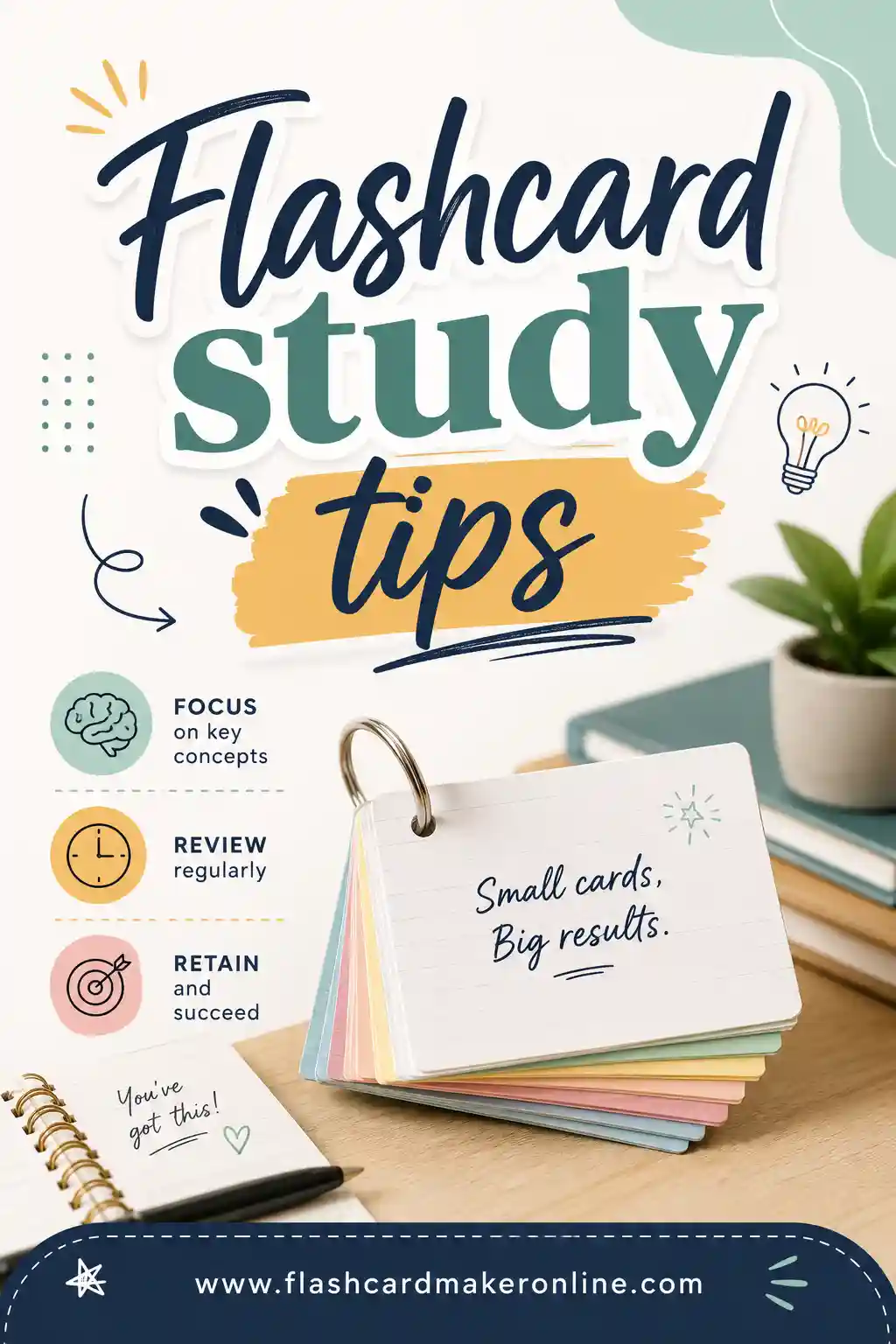
Phones make both of these easy because the deck is always a tap away. For a deeper dive into technique, see our full flashcard study tips. And if you're learning a new language, phone flashcards are ideal for daily vocab drills, here's our guide to flashcards for language learners.
Frequently Asked Questions
Can I make flashcards on my phone without an app?
Yes. A browser-based flashcard maker runs right in Safari, Chrome, or any phone browser. You make your cards, tap to flip, and study without installing anything or signing up.
Does this work on both iPhone and Android?
Yes. A web-based flashcard maker works on any phone with a modern browser, so it doesn't matter whether you have an iPhone or an Android device. The same deck also opens on a tablet or computer.
Is making flashcards on my phone free?
Yes, completely. There's no sign-up, no subscription, and no watermark. You make as many decks as you want and study them right in your browser, with the option to print for free too.
How do I study flashcards on my phone effectively?
Use short, frequent sessions. Read the front, answer in your head, then tap to flip and check. Shuffle the deck each time, focus on the cards you miss, and review across several days instead of cramming once.
Can I print flashcards I made on my phone?
Yes. Build the deck on your phone, then print it straight from the browser or open the same flashcard maker on a computer and print there. You get the convenience of phone study plus a paper set when you want one.
How many flashcards should I keep on my phone?
As many as you need to cover the material, but study them in small batches. A deck of 30 to 100 cards is easy to manage if you review 10 to 20 at a time rather than trying to flip them all in one sitting.
Ready to Make Flashcards on Your Phone?
Grab the sample deck above, open the free flashcard maker in your phone's browser, and you'll have a study-ready set in minutes. Flip the cards with a tap during any spare moment, shuffle to keep yourself honest, and print the deck whenever you want paper. It's free, there's no app to install, and no sign-up. Make your first deck today and turn your phone into a study tool you'll actually use.