How to Make Digital Flashcards (Free, Fast, and Printable)
To make digital flashcards, type a question or term on the front of each card and its answer on the back, keep every card to a single idea, then flip through them on screen to test your recall. The quickest way to build a clean set is to use a free flashcard maker where you type your pairs once, flip to study, and print the whole deck whenever you want a paper version.
Want to skip the busywork? Open the free flashcard maker, paste in your terms and definitions (there's a ready-made sample deck below to copy), and you'll have a study-ready set in a couple of minutes. No sign-up, no app to download, nothing to pay.
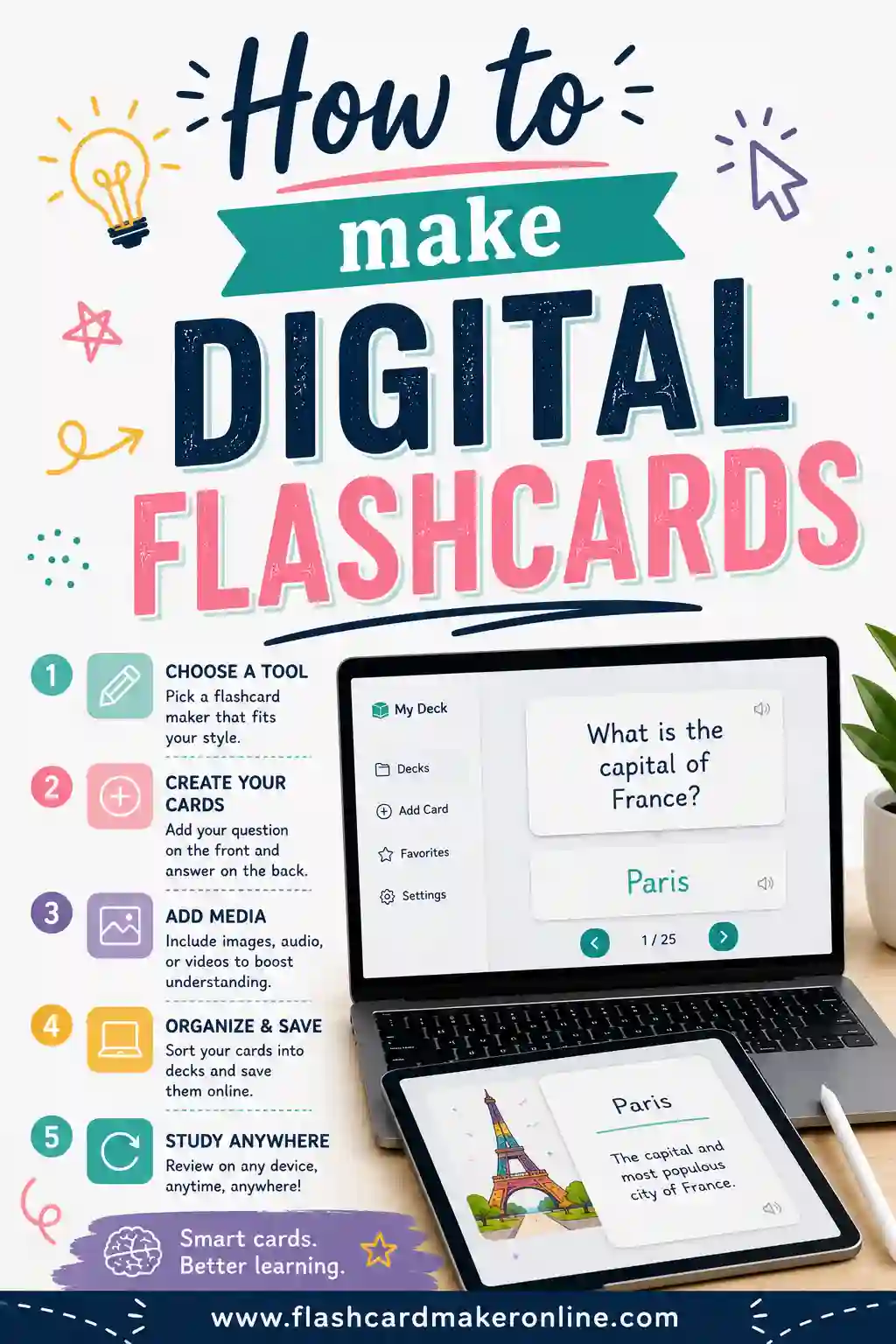
What Are Digital Flashcards?
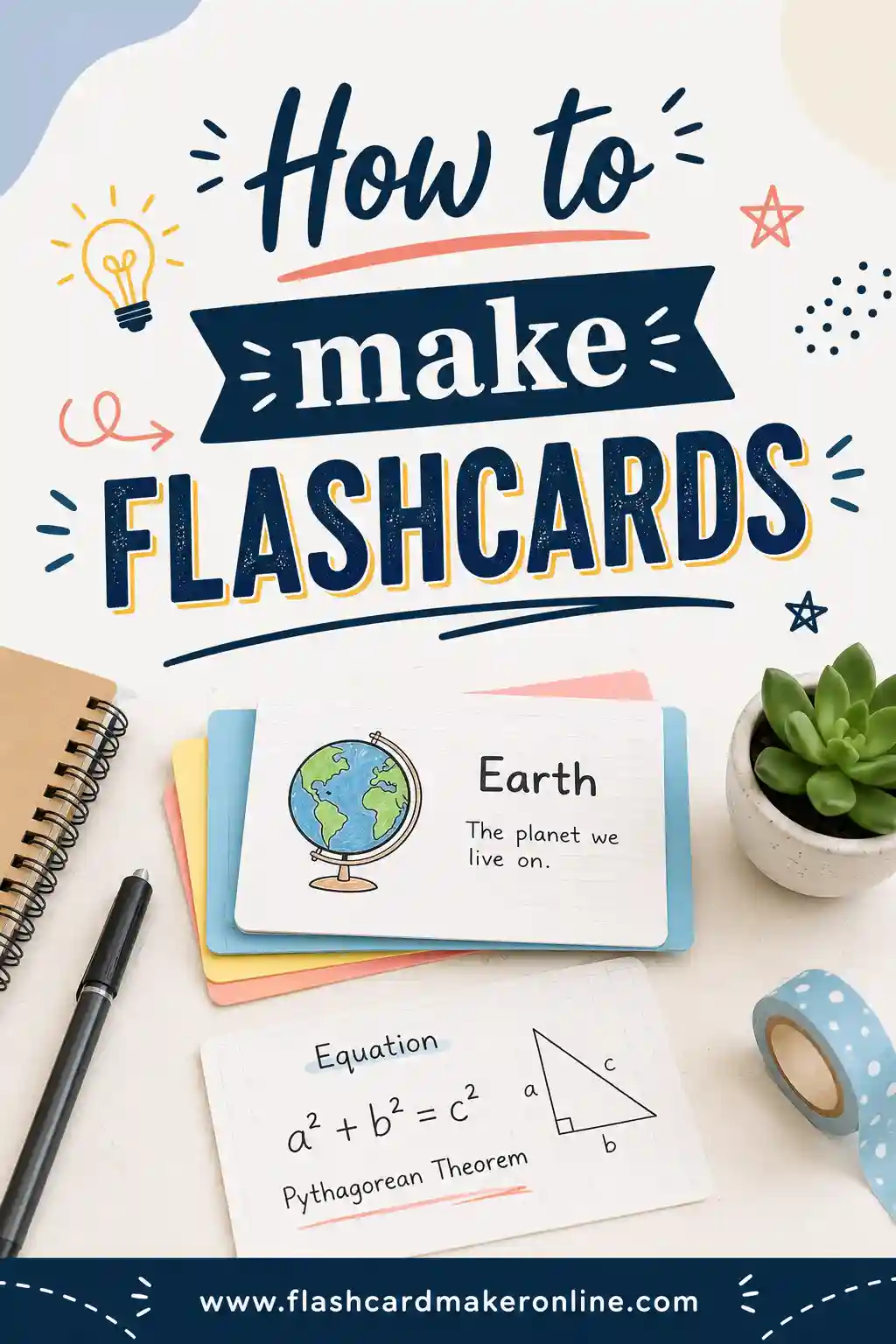
A digital flashcard is the same idea as an old paper index card, just made and stored on a screen. One side holds a prompt (a question, a term, a foreign word). The other side holds the answer. You read the front, try to remember the back, then flip to check yourself.
The format is simple, but the payoff is real. Flipping a card forces your brain to retrieve a fact instead of passively rereading it. That act of pulling the answer out of your own head is what builds a lasting memory. Digital cards make this easy to do anywhere, because the whole deck lives in one place instead of a stack of paper you can scatter or lose.
You can do everything a paper card does and a few things you can't:
- Shuffle the deck instantly so you don't memorize the order.
- Edit a typo in two seconds instead of rewriting a card.
- Carry hundreds of cards on a phone or laptop with no weight.
- Print the whole set on demand when you want a paper version.
Why Make Digital Flashcards Instead of Paper?
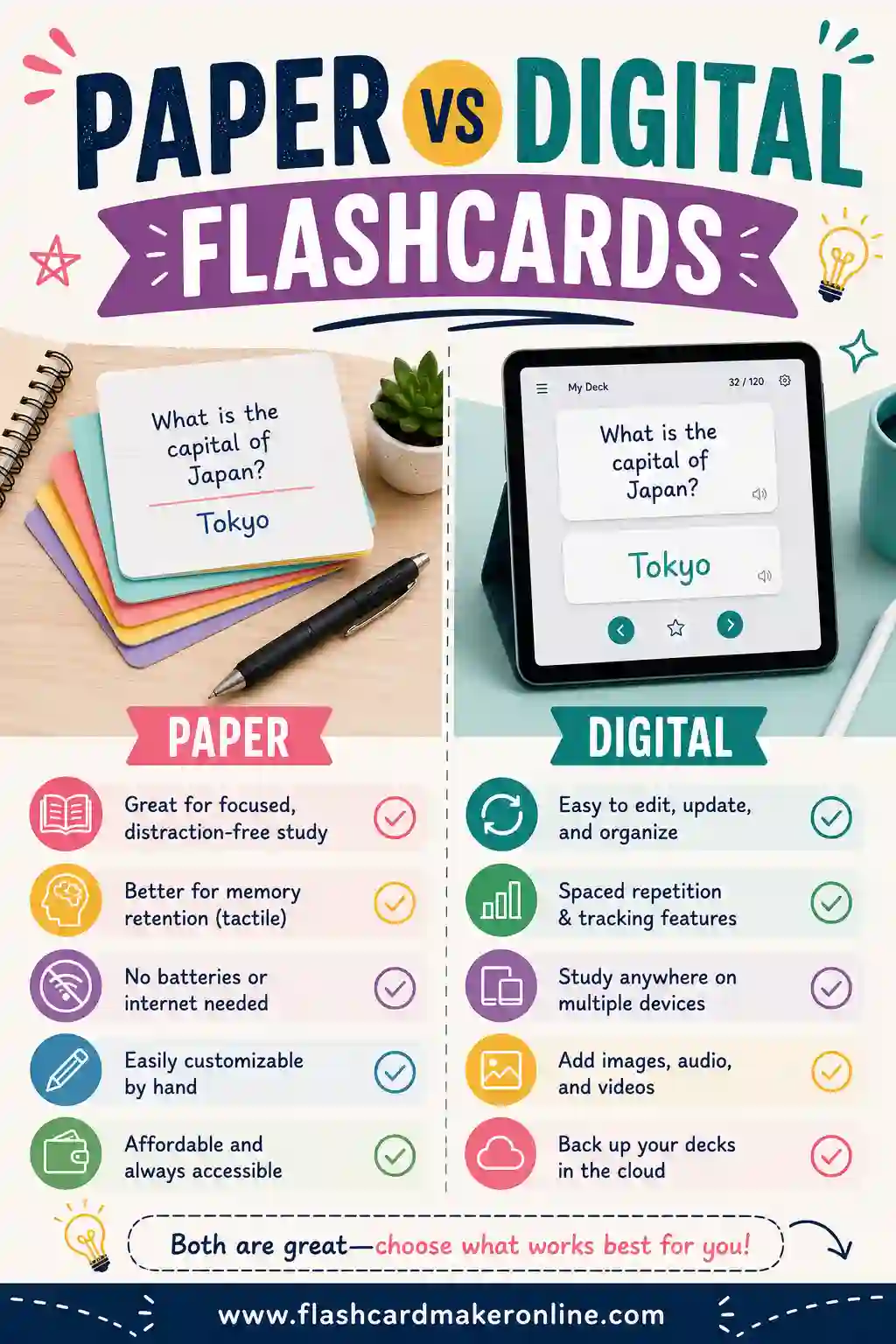
Paper cards still have a place, and the writing-it-out step gives a small memory boost. But for most students, digital wins on speed and convenience. Here's the honest comparison.
| Paper flashcards | Digital flashcards | |
|---|---|---|
| Setup speed | Slower, write each by hand | Fast, type once |
| Easy to edit | No, rewrite the card | Yes, fix in seconds |
| Shuffle the order | Physically, by hand | Instant, one click |
| Hard to lose | No, they scatter | Yes, saved in one place |
| Carry a big deck | Bulky | Weightless on a device |
| Printable | Already paper | Yes, print the full deck |
If you want the full breakdown, there's a deeper guide on paper vs digital flashcards. For most people the sweet spot is to build the deck digitally so it's fast to edit, then print it when you want to study away from a screen.
How to Make Digital Flashcards in 6 Steps
You don't need design skills or special software. Here's the whole process, start to finish.
1. Gather your material
Pull together what you're trying to learn: a textbook chapter, lecture notes, a vocab list, or terms for a certification exam. Highlight the facts likely to be tested or the ones you keep forgetting. Those are your card candidates.
2. Break it into single ideas
Split anything big into bite-sized pieces. "The water cycle" isn't a card. "What is evaporation?" is. If a fact has three parts, that's usually three cards, not one. One idea per card is the single most important rule.
3. Write the front as a prompt
The front should ask you something. "Capital of Australia?" beats writing "Australia," because a question triggers real recall. For languages, the front can be a single word. For formulas, write the name and let the back hold the formula.
4. Write the back as one short answer
Keep the back tight: one word, one phrase, or one short sentence. If your answer runs three lines, the card is trying to do too much. Split it into two cards.
5. Type your pairs into a flashcard maker
Open a free flashcard maker and enter each front and back. This is where digital shines. You type once, and the tool handles the flipping, the shuffling, and the layout. No ruler, no rewriting, no scattered stack.
6. Flip, study, and print if you want
Now review. Read each front, answer before you flip, and check yourself. Mark the cards you miss so they come back sooner. When you want a paper version for the bus or a quiet study session, print the whole deck in one go.
Sample Digital Flashcard Deck (Copy & Paste)
Here's a ready-to-use mixed deck so you can see what clean cards look like. The left column is the front (the prompt) and the right column is the back (the answer). Copy any rows straight into the flashcard maker to start studying.
| Front (term / question) | Back (definition / answer) |
|---|---|
| Capital of Australia? | Canberra |
| Capital of Japan? | Tokyo |
| H2O is the formula for? | Water |
| Largest planet in our solar system? | Jupiter |
| The mitochondria is the? | Powerhouse of the cell |
| Spanish: "gracias" | Thank you |
| French: "bonjour" | Hello |
| Speed equals distance divided by? | Time |
| Who wrote Romeo and Juliet? | William Shakespeare |
| What year did WWII end? | 1945 |
| 7 x 8 = ? | 56 |
| Area of a triangle formula? | ½ × base × height |
| Freezing point of water in °C? | 0°C |
| What is a noun? | A person, place, thing, or idea |
| Photosynthesis converts sunlight into? | Glucose (sugar) |
| Capital of Canada? | Ottawa |
| Spanish: "perro" | Dog |
| What is a verb? | An action or state-of-being word |
| Chemical symbol for gold? | Au |
| Number of continents on Earth? | Seven |
Notice the pattern: every front asks one thing, and every back answers it in a few words. That's the standard to aim for in your own deck.
Tips for Making Digital Flashcards That Stick
The tool does the busywork, but good cards are still a skill. These habits make a real difference.
- One idea per card. It's the biggest fix for most decks. If you want to add a second fact, make a second card.
- Make the prompt a real question. "What is osmosis?" beats "osmosis" because it triggers retrieval.
- Use your own words. Rewriting a definition in plain language forces you to actually understand it.
- Add a hint only when it helps. A short cue can rescue a hard card. Don't turn it into a paragraph.
- Shuffle every session. If you always review in the same order, you memorize the order, not the facts.
- Front-load the hard stuff. Make cards for what you keep forgetting first, and review those most.
Study schedule that works
A few short, spaced sessions beat one long cram. Here's a simple rhythm to follow.
| When | What to do |
|---|---|
| Same day you make the deck | Run through it once, slowly |
| Next day | Review again, focus on misses |
| 3 days later | Quick pass, retire easy cards |
| 1 week later | Full review to lock it in |
| Before the test | Drill only the cards you still miss |
This is spaced repetition in action. Your brain remembers more when it has to work a little to recall something that's started to fade.
How to Study Your Digital Flashcards
Making the deck is half the job. Using it well is the other half.
- Read the front and answer before you flip. Out loud or in your head. This is active recall, and it's where the learning happens.
- Flip and check. Right? Set it aside. Wrong? Keep it in the pile for another pass.
- Sort by difficulty. Cards you nail move to a "review later" stack. Cards you miss come back soon.
- Space your reviews. Don't drill the whole deck once and quit. Come back tomorrow, then in a few days.
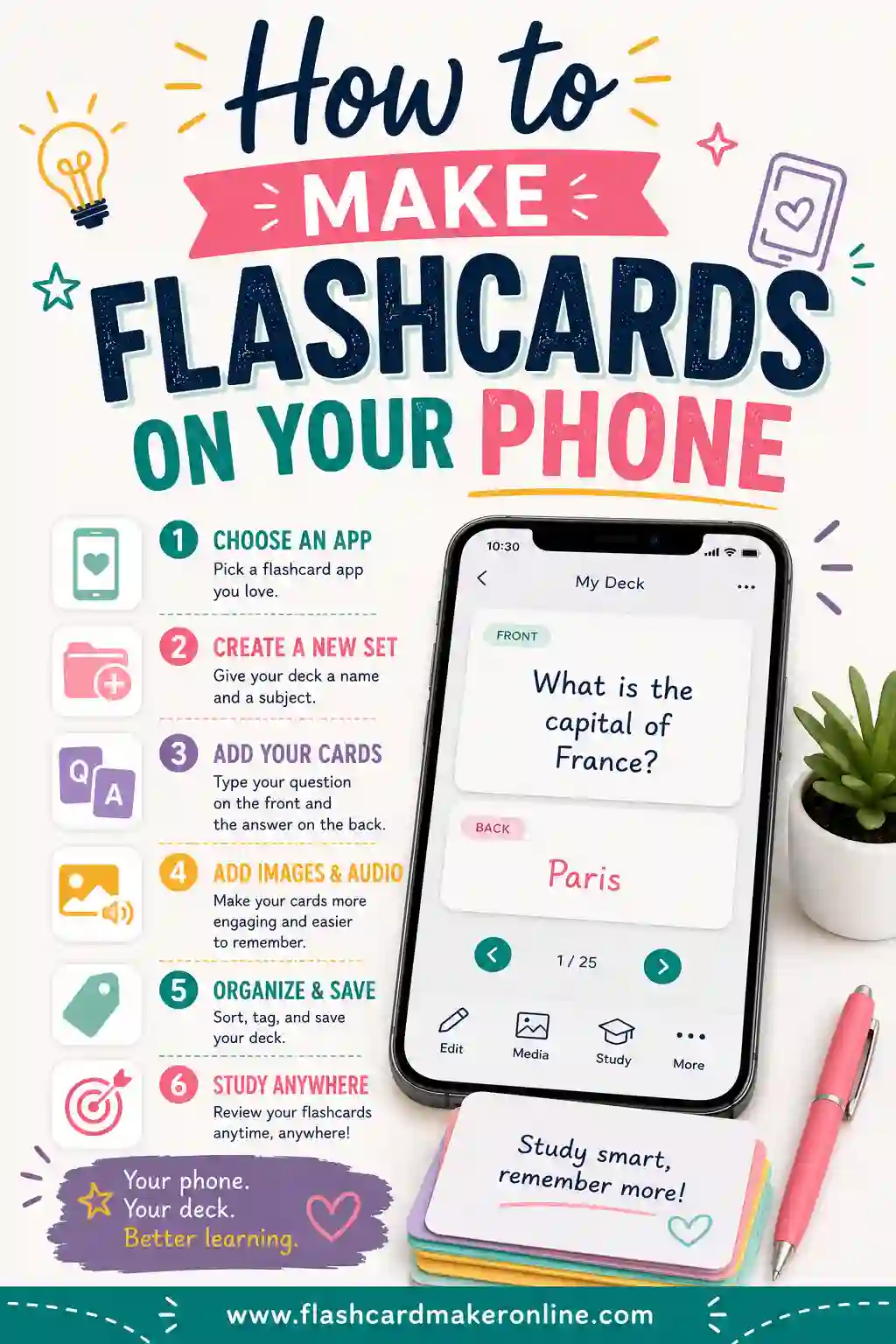
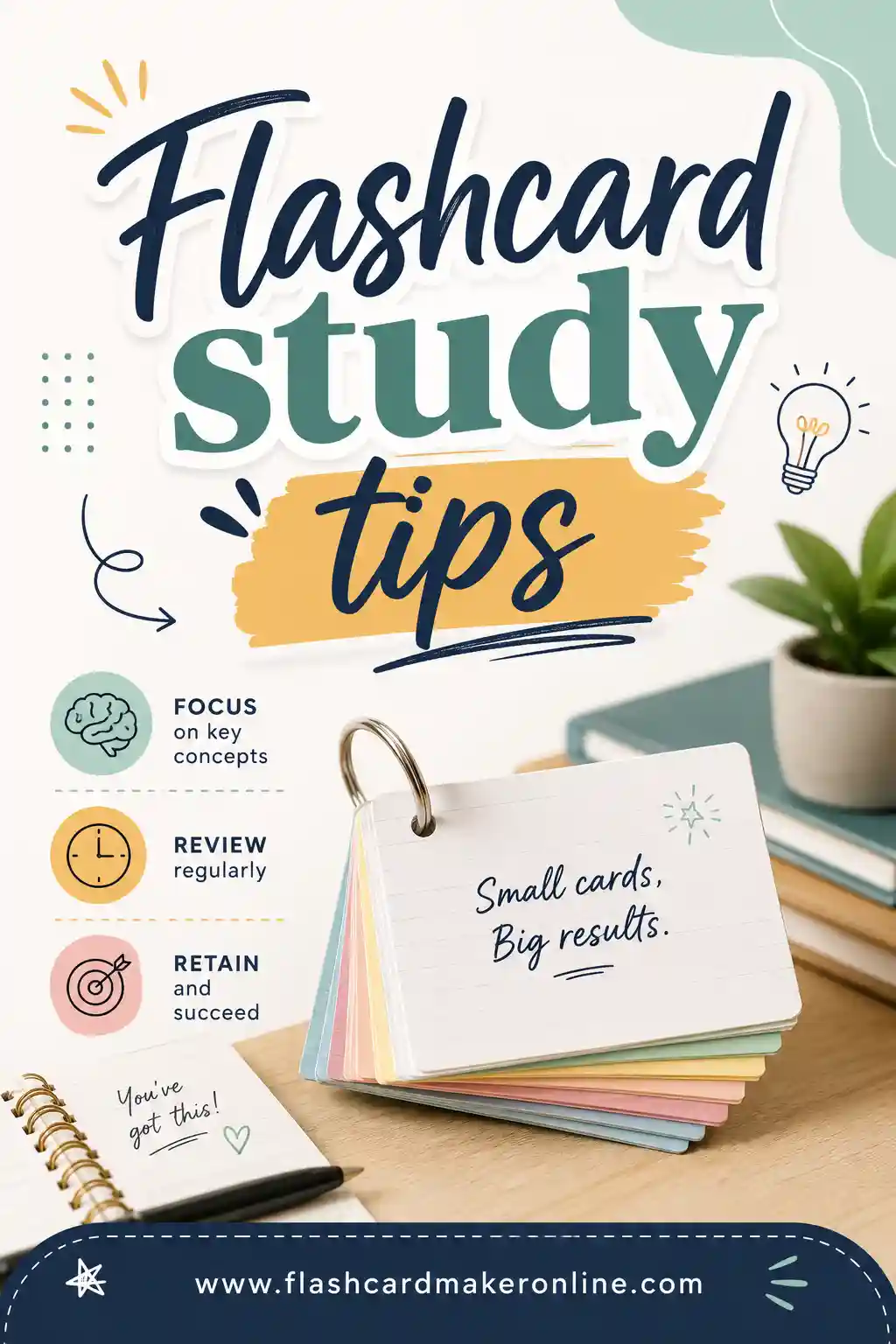
Want more on technique? See our full list of flashcard study tips. And if you'd rather study on the go, here's how to make flashcards on your phone so your deck rides along in your pocket.
Frequently Asked Questions
How do I make digital flashcards for free?
Open a free flashcard maker, type a question on the front of each card and the answer on the back, then flip through the deck to study. There's no sign-up and no cost. You can also print the full set whenever you want a paper version.
Are digital flashcards as good as paper ones?
For most people, yes, and often better. Digital cards are faster to make, easy to edit, impossible to lose, and you can shuffle them instantly. Paper gives a small memory boost from handwriting, which is why many students build digitally and study on a printed copy.
Can I print my digital flashcards?
Yes. A good flashcard maker lets you print the whole deck in one click. Build and edit the set on screen, then print it on plain paper or cardstock to study away from a device.
How many digital flashcards should I make?
Enough to cover every fact you need to know, often 30 to 100+ for a full chapter or unit. Don't pad the deck with things you already know cold. Focus on the facts you keep forgetting and the ones most likely to be tested.
What should I put on each flashcard?
One prompt on the front and one short answer on the back. Keep it to a single idea, phrase the front as a question when you can, and use your own words. Add a hint or image only when it genuinely helps you recall.
Do I need an app to make digital flashcards?
No. A free web-based flashcard maker runs right in your browser, so there's nothing to install. You make the deck, flip to study, and print if you like, all from one page on any device.
Ready to Make Your Digital Flashcards?
Grab the sample deck above, open the free flashcard maker, and you'll have a clean, study-ready set in minutes. Flip the cards on screen to test yourself, then print the stack for sessions away from a screen. It's free, there's no sign-up, and you can make as many decks as you need. Pick one chapter today and start building. You'll be surprised how fast the facts start sticking.