How to Print Quizlet Flashcards: Quick Print or Real Cut-Out Cards
Yes, you can print Quizlet flashcards. Open the set, look for a print option (it usually lives in the set's "more" menu, often shown as three dots), pick a layout and print. Quizlet changes its menus from time to time, so the exact button may look a little different when you try it.
If you want more control, like bigger cards, true index-card sizes or backs that line up for double-sided printing, there's a second route: copy your terms out of Quizlet as a simple list, paste them into our free maker, and print from there. Here's what that looks like:
🃏 Quiz yourself: 8 cards from this page
Read the front, say your answer, then tap the card to check.
Make, study & print this deck → Opens the free flashcard maker with all 8 cards ready to edit or print.Can you print flashcards from Quizlet?
Usually, yes. Quizlet has offered a way to print sets for a long time, and it's handy when you just want a quick paper copy. The general steps:
- Open the set you want to print, on a computer if you can. Printing from a phone works, but the print menus are easier on a laptop.
- Find the set's extra options. Look for a "more" or three-dot menu near the set title.
- Choose the print option, then pick a layout if it gives you choices.
- Check the preview before you print, so you don't burn through paper on a layout you don't like.
Menus can change, and some options can depend on your account or on whether the set is yours. If you don't see a print option, don't worry. The copy-and-paste route below works with any list you can get as text.
How do you print Quizlet flashcards as real cut-out cards?
This is the part people get stuck on. A quick print of a set is often more of a list than a deck of cards you can shuffle. To get proper flashcards with the term on one side and the definition on the other, move the list into a flashcard maker built for printing.
Step 1: Get your terms as text
Quizlet has offered an export option for sets (look in that same "more" menu). It gives you plain text where each card is one line, with a separator between the term and the definition. If it lets you choose the separator, a tab or a colon both work in our maker.
No export option? It may only show on sets you created, or it may have moved. You can also type or paste your terms into a spreadsheet or a plain text file, one card per line. For a short set that only takes a few minutes.
Step 2: Paste the list into the maker
Open the flashcard maker, give your deck a title, and click Paste a list. Paste your text and every line becomes a card. Tabs, colons, dashes and equals signs all work as separators, so the export usually drops in cleanly. The tidiest format looks like this:
| What you paste (one line per card) | Front | Back |
|---|---|---|
| mitosis : cell division that makes two identical cells | mitosis | cell division that makes two identical cells |
| photosynthesis : how plants turn light into food | photosynthesis | how plants turn light into food |
| osmosis : water moving across a membrane | osmosis | water moving across a membrane |
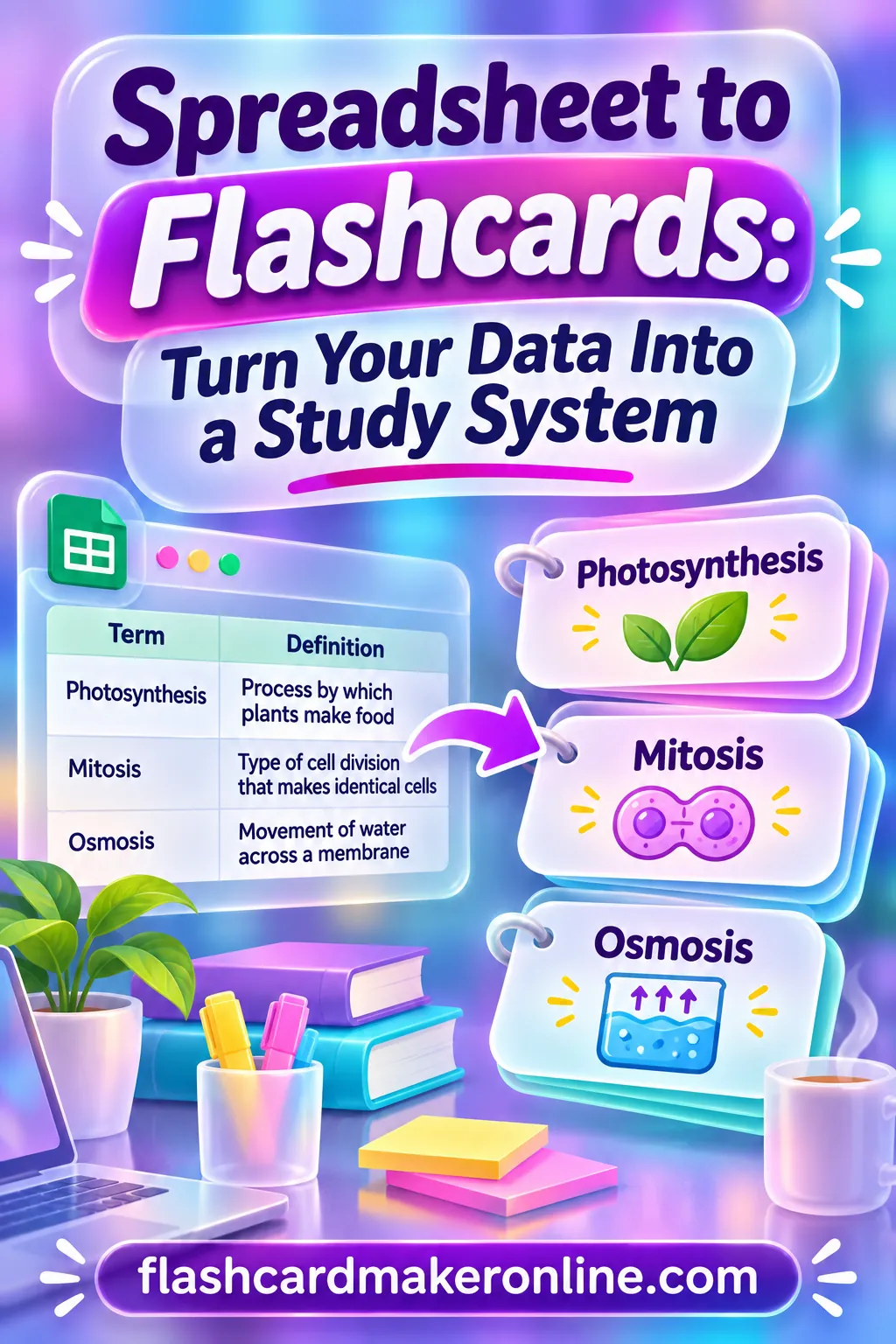
If your list is in a spreadsheet, our guide to turning a spreadsheet into flashcards has a one-line formula that joins two columns for you.
Step 3: Pick a size and print
Go to the Print tab and choose a layout:
| Layout | Cards per page | Good for |
|---|---|---|
| Big | 4 | Kids, big diagrams, reading across a table |
| Standard | 8 | Most class decks |
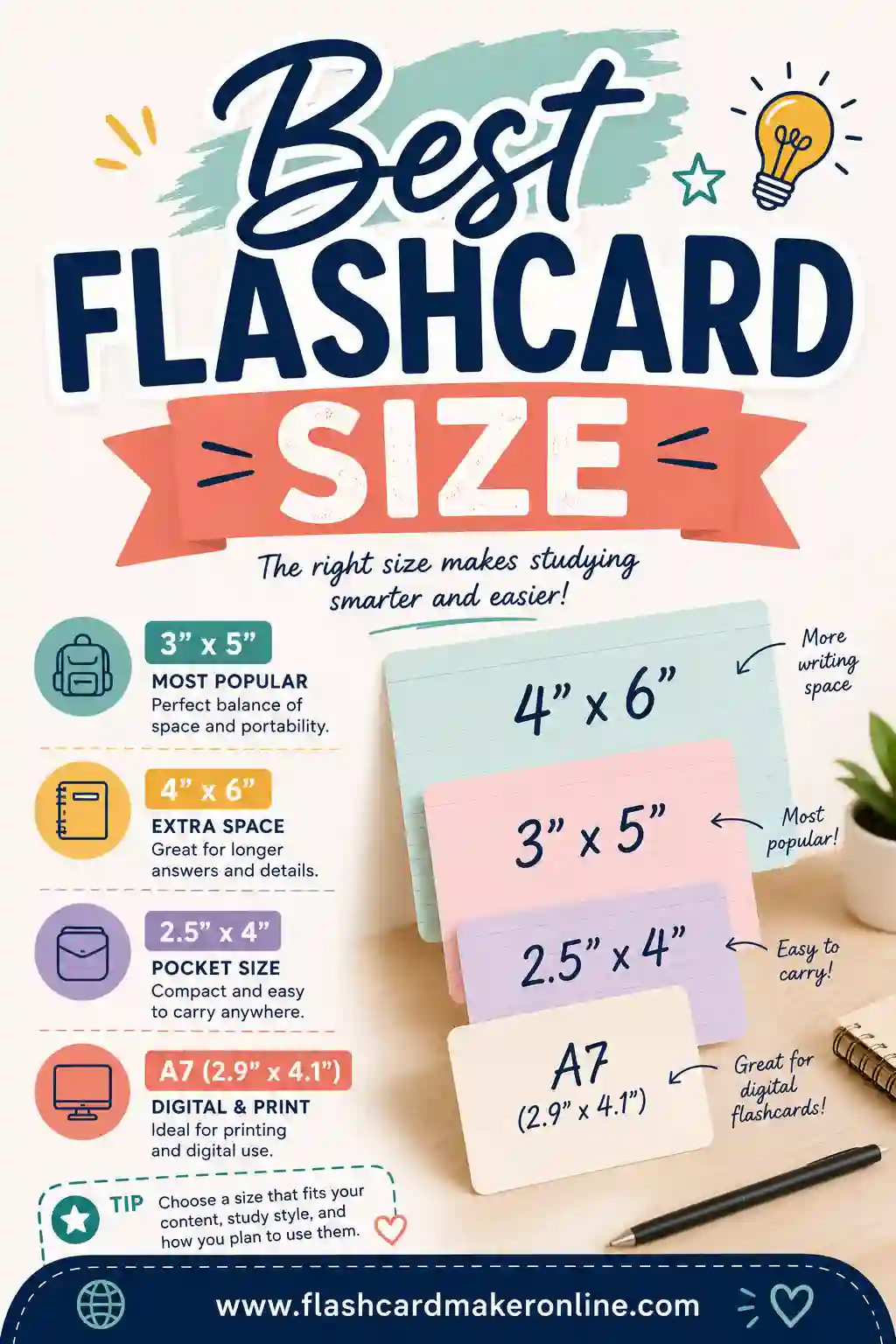
| 3x5 index card | 3 | Classic study cards, fits a recipe box |
| 4x6 index card | 2 | Longer definitions or formulas |
Then choose double-sided (term on the front, definition on the back), fronts only, or a cut-out sheet that shows the term and definition together on each card (great for fold-over cards). Print at 100% or "Actual size" so the cards come out the right size. Not sure which size to go with? Here's our take on the best flashcard size for different subjects.
Quizlet print vs a printable flashcard maker
Honestly, both are fine. It depends what you want the paper for.
| You want... | Easiest route |
|---|---|
| A quick paper list to review on the bus | Quizlet's own print option |
| Cards you can shuffle and sort into piles | Paste into the maker and print cut-out cards |
| Real double-sided cards that line up | Paste into the maker, print double-sided with a test page first |
| Index-card sizes (3x5 or 4x6) | Paste into the maker, print true-size index layouts |
| Pictures on your cards | Add images in the maker (text exports usually leave pictures behind) |
How do you print double-sided flashcards that line up?
This is where most home printing goes wrong. Printers flip pages differently: some along the long edge, some along the short edge. If you pick the wrong one, every definition lands on the wrong card.
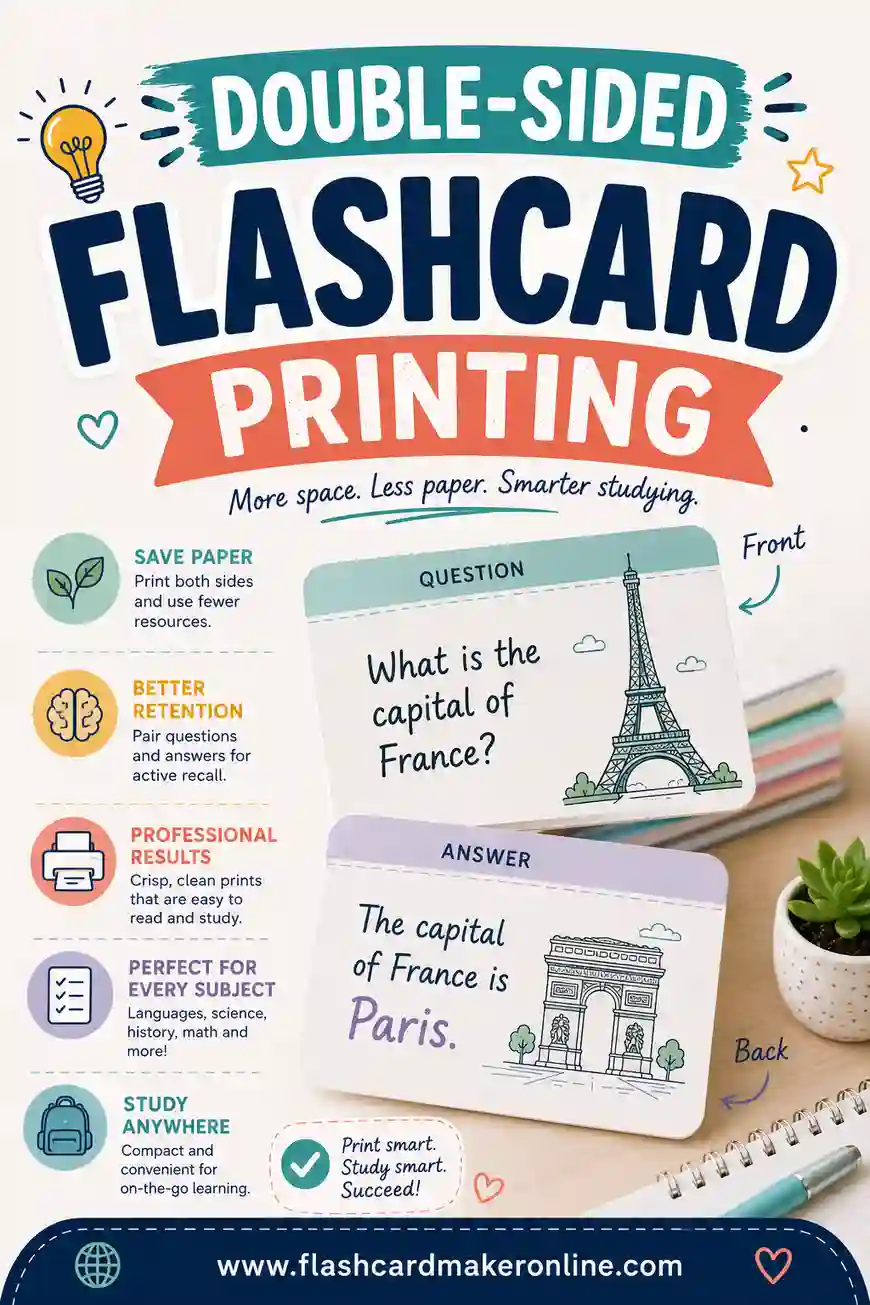
The fix is a quick test. Print just two pages double-sided, hold the sheet up to a window, and check that each back sits behind its front. If it's off, switch between "flip on long edge" and "flip on short edge" and try again. Our guide to double-sided flashcard printing covers manual duplex printers too.
Common mistakes when printing Quizlet flashcards
- Printing at "Fit to page." It shrinks everything a little, so index-card layouts come out the wrong size. Use 100%.
- Printing 200 cards at once. Print one chapter at a time. A smaller stack actually gets studied.
- Long definitions. If a definition runs past two lines, trim it before you paste. Short backs are faster to review and easier to remember.
- Thin paper. Regular printer paper works, but cardstock lasts longer and you can't see the answer through the back.
- Forgetting whose set it is. Printing a classmate's or teacher's shared set for your own study is normal. Just don't sell or repost someone else's work.
Do you need Quizlet at all?
If you mostly study on paper, maybe not. Our maker lets you make, study and print cards in your browser with no account. If you also like Quizlet's games and study modes, use both: build the set there, then print the paper version here. For a wider look at your options, see our list of free Quizlet alternatives.
Ready to try it? Copy a list from one of your sets, paste it into the free flashcard maker, and you'll have a printable deck in about a minute.
Frequently Asked Questions
Can you print flashcards from Quizlet?
Usually, yes. Open the set and look for a print option in its more or three-dot menu. Quizlet changes its menus from time to time, so the exact button may look different.
Why can't I find the print option on Quizlet?
Menus move, and some options can depend on your account or on whether the set is yours. If you don't see it, export or copy the terms as text and print them from a flashcard maker instead.
How do I print Quizlet flashcards double-sided?
Paste your terms into a printable flashcard maker, choose the double-sided layout, and print a two-page test first. If backs don't line up, switch between flip on long edge and flip on short edge.
Can I print Quizlet flashcards on index cards?
Yes. Paste your list into our maker and pick the 3x5 or 4x6 index card layout, then print at 100% or Actual size so the cards come out true to size.
Do pictures come over when I copy a Quizlet set?
Text exports usually bring only the terms and definitions. You can add pictures to any card in our maker before printing.
Is it free to print flashcards this way?
Our flashcard maker is free, with no account needed. You just need a printer, and cardstock if you want sturdier cards.