Import a Spreadsheet or Word List Into Flashcards (Copy and Paste)
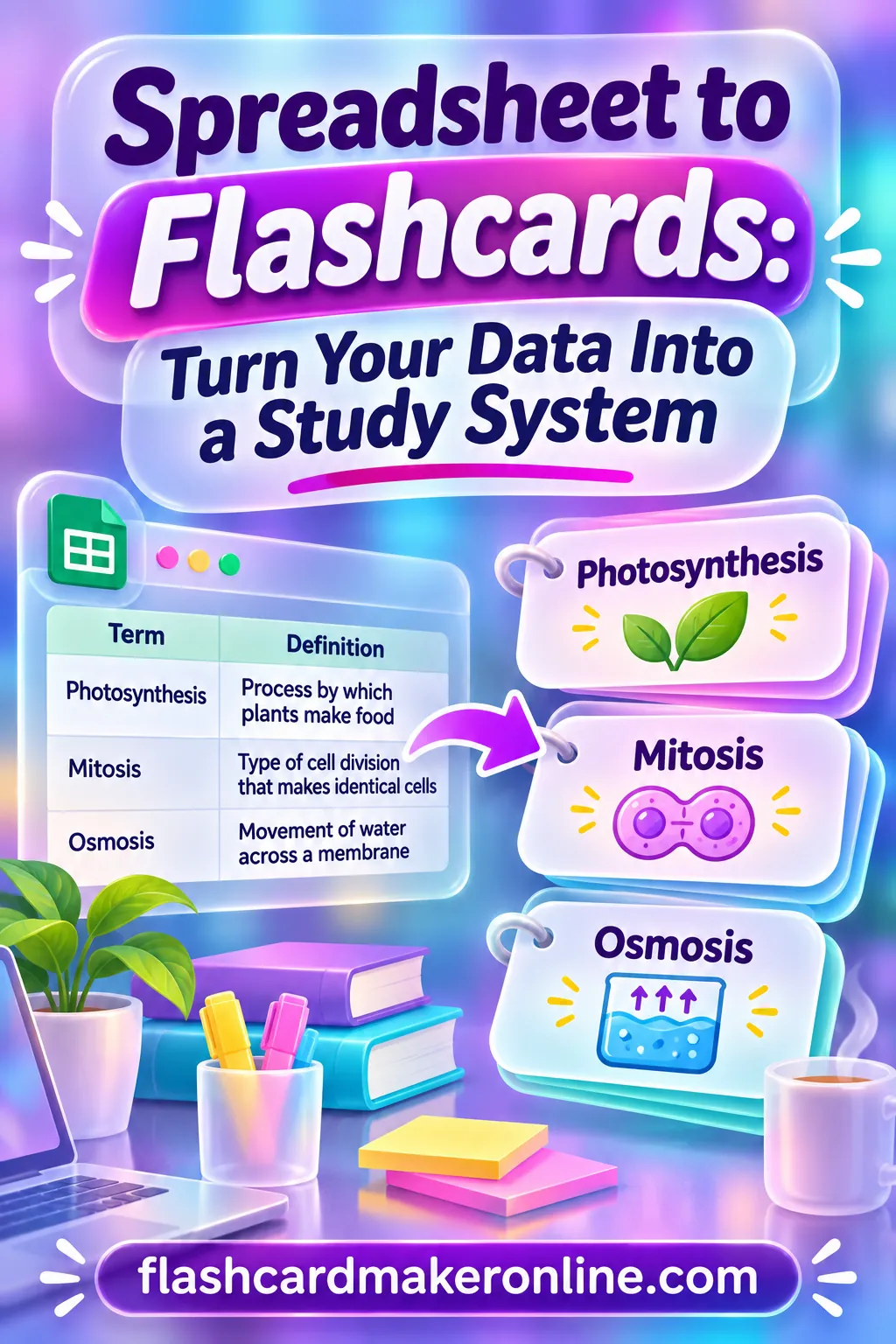
To import a spreadsheet to flashcards without retyping, add one helper column that joins each row into a front : back line, copy that column, and paste it into the Paste a list box of a flashcard maker. Every row becomes a card in one step, whether your list has 20 rows or 400. The same trick works for a Word document once each line has a front and back you can separate.
The free flashcard maker on our homepage has that Paste a list box built in, plus an Import a file option and a Download .csv button, and you don't need an account to use any of them. Below you'll find the exact formulas for Excel and Google Sheets, a fix for Word lists and tables, a ready-to-paste 36-word sample deck, and solutions for the messy stuff: extra colons, line breaks inside cells, blank rows, and lists in the wrong column order.
🃏 Quiz yourself: 12 cards from this page
Read the front, say your answer, then tap the card to check.
Make, study & print this deck → Opens the free flashcard maker with all 12 cards ready to edit or print.▶ Open this deck in the flashcard maker
Why Copying a Spreadsheet Straight In Doesn't Quite Work
You'd think you could select two columns in Excel, copy, and paste. Try it and look at what actually lands on your clipboard. Each row comes out as one line, with the two cells separated by an invisible tab character:
abate   To become less intense or widespread
candid  Truthful and straightforward; frank
That looks fine to you, but a tab is just a gap. The maker's Paste a list box is set up for a different separator: a colon with a space on each side.
abate : To become less intense or widespread
candid : Truthful and straightforward; frank
So the whole job is changing one invisible character per row into " : ". You can do that three ways, and they're all fast:
| Method | Best for | Time for 200 rows |
|---|---|---|
| Helper column formula | Excel, Google Sheets, Numbers, LibreOffice | About 1 minute |
| Find and replace on tabs | Lists already copied into a text editor or Word | About 1 minute |
| Find and replace on another separator | Word lists that use a dash, equals sign, or comma | 1–3 minutes |
The helper column is the most reliable, so let's start there.
Method 1: The Helper Column (Excel and Google Sheets)
This works in nearly any spreadsheet app, because it only uses the most basic text-joining formula.
Step 1: Put your fronts in column A and backs in column B
If your sheet has a header row like "Word" and "Definition," that's fine. You'll just skip it when you copy. If your columns are in the wrong order, don't move them yet. The formula can flip them for you (see below).
Step 2: Add the formula in column C
Click cell C2 (the first row of data, under your header) and type:
=A2&" : "&B2
Press Enter. Cell C2 now shows something like abate : To become less intense or widespread.
The & sign joins text together. The " : " in quotes is the separator, with one space on each side of the colon. This same formula works in Excel, Google Sheets, Apple Numbers, and LibreOffice Calc.
Step 3: Fill the formula down
Copy C2 down to the last row of your list. In Excel or Google Sheets, the quickest way is to click C2 and double-click the small square at the bottom-right corner of the cell. It fills down as far as your data goes. You can also select C2, drag down to the last row, and press Ctrl+D (Cmd+D on a Mac in most apps).
Step 4: Copy column C only
Select C2 through your last row and copy. Don't include the header cell, or "Word : Definition" becomes your first card. The clipboard now holds clean front : back lines, one per row.
Step 5: Paste into the maker
Open the maker, give your deck a title, open Paste a list, and paste. Choose Add to deck or Replace deck, and every line turns into a card.
That's the whole method. Five steps, about a minute, no retyping.
Flipping the columns
Say your spreadsheet has the definition in column A and the word in column B, and you want the word on the front. Just switch the order in the formula:
=B2&" : "&A2
You can also build both directions. Fill one column with =A2&" : "&B2 and another with =B2&" : "&A2. Paste the first column, then use Add to deck to paste the second. Now you have cards that test you both ways, which is especially useful for language vocabulary.
Pulling from columns that aren't next to each other
Spreadsheets often have extra columns: part of speech, chapter number, notes, a "learned" checkbox. You don't need to delete them. Point the formula at the two you want. If your words are in column A and the definitions are in column D, use:
=A2&" : "&D2
Adding extra details to the back
Want the part of speech or an example sentence on the back too? Join more cells:
=A2&" : "&B2&" ("&C2&")"
If column C holds the part of speech, a row becomes abate : To become less intense or widespread (verb). Keep it short, though. A back that tries to hold a definition, a part of speech, a synonym, and an example sentence gets slow to review.
Cleaning Up the Data Before You Paste
Spreadsheets collected over a semester, or exported from somewhere else, usually have a few rough spots. Here's how to handle each one inside the formula, so you never have to fix the sheet by hand.
Extra colons inside cells
This is the most common snag. If a cell already contains a colon, such as "Ratio: 3 to 1" or a time like "10:30," the maker can't tell which colon is the separator. Replace colons in the cells with a dash as you join them:
=SUBSTITUTE(A2,":"," -")&" : "&SUBSTITUTE(B2,":"," -")
SUBSTITUTE swaps every colon in that cell for a dash. Your original data stays untouched; only the helper column changes.
Line breaks inside cells
If you pressed Alt+Enter in Excel (or Ctrl+Enter in Google Sheets) to put two lines in one cell, those breaks split a single card into two lines when you paste. Swap them for a space:
=SUBSTITUTE(A2,CHAR(10)," ")&" : "&SUBSTITUTE(B2,CHAR(10)," ")
CHAR(10) is the line-break character. Some apps add a quote mark around cells that contain line breaks when you copy them. Using this formula avoids that.
Stray spaces
Copied lists often have spaces at the start or end of cells. They won't break anything, but they can make the same word look different on two cards. Wrap each cell in TRIM:
=TRIM(A2)&" : "&TRIM(B2)
Blank rows
Blank rows in the middle of your list produce lines that are just " : " with nothing on either side. Skip them with an IF:
=IF(A2="","",A2&" : "&B2)
If column A is empty, the helper cell stays empty too. Empty lines usually just get ignored, but it's cleaner not to paste them at all. Sorting the sheet by column A before you copy also pushes blank rows to the bottom, out of the way.
The all-in-one formula
If your sheet has a bit of everything, this version handles colons, line breaks, extra spaces, and blank rows at once:
=IF(A2="","",TRIM(SUBSTITUTE(SUBSTITUTE(A2,CHAR(10)," "),":"," -"))&" : "&TRIM(SUBSTITUTE(SUBSTITUTE(B2,CHAR(10)," "),":"," -")))
It looks long, but you only type it once. Paste it into C2, fill down, and copy the column. Here's what each common problem turns into:
| What's in the cell | What the helper column outputs | Why |
|---|---|---|
Ratio: 3 to 1 |
Ratio - 3 to 1 |
Colon swapped for a dash |
two lines with a break between |
two lines on one line |
Line break swapped for a space |
frugal |
frugal |
Extra spaces trimmed |
| An empty row | Nothing | The IF skips it |
10:30 a.m. |
10 -30 a.m. |
Colon swapped; edit the card if you want "10.30" or "half past ten" |
That last row is a good reminder: for times or ratios, you may prefer to rewrite those few cells by hand rather than accept the dash. With most lists, only a handful of cells need that kind of attention.
Method 2: Lists in Word, Google Docs, or a Text File
Not every list lives in a spreadsheet. Teachers send vocabulary lists as Word documents, study guides come as PDFs, and your own notes might be a plain list in Google Docs. The goal is the same: get each card onto one line with " : " between the front and back.
If the list uses a dash, equals sign, or other separator
Many lists look like this:
abate - to become less intense
candid - truthful and straightforward
diligent - showing steady, careful effort
In Word or Google Docs, open Find and Replace (Ctrl+H on Windows, Cmd+Shift+H in Google Docs on a Mac, or from the Edit menu). Find - (space, dash, space) and replace with : (space, colon, space). Click Replace All. Then select the whole list, copy, and paste it into the maker.
Use the version with spaces around the dash. Searching for a plain dash would also change hyphenated words like "well-known" in your definitions.
The same idea works for other separators:
| Your list looks like... | Find | Replace with |
|---|---|---|
word - meaning |
- |
: |
word = meaning |
= |
: |
word – meaning (en dash) |
– |
: |
word, meaning |
Use with care (see below) | : |
word then a tab, then meaning |
^t in Word |
: |
Commas are risky. Definitions often contain commas, so replacing every comma would split cards in the wrong places. If your list uses commas as the separator, paste it into a spreadsheet first (most spreadsheet apps can split text into columns on the first comma, or you can use a "split text to columns" option), then use the helper column method.
If the list is a table in Word
Word tables copy cleanly into a spreadsheet. Select the table, copy, paste into Excel or Google Sheets, and each cell lands in its own cell. Then use the helper column formula. This is usually faster than any find-and-replace inside Word.
If you'd rather stay in Word, you can convert the table to text: click in the table, look for Convert to Text on the Table Layout tab, and choose Tabs as the separator. Then find ^t (Word's code for a tab) and replace with :.
If the list is in a PDF
Copying from a PDF is hit or miss. Sometimes you get clean lines; sometimes every word lands on its own line, or the columns come out in the wrong order. Try copying a few lines first and pasting them into a text file to see what you get. If the text comes out clean, use find and replace as above. If it comes out scrambled, paste it into a spreadsheet and tidy it into two columns there, then use the helper column.
If the front and back are on separate lines
Some lists put the word on one line and the meaning on the next:
abate
to become less intense
candid
truthful and straightforward
Paste this into column A of a spreadsheet so each line gets its own row. Then in B1 type =A1&" : "&A2, in B2 leave it empty, and fill that pair of cells down together (select B1 and B2, then fill down). Every other row gives you a joined card. Copy column B, and the empty cells simply leave blank lines that the paste ignores. Double-check a few cards to make sure the pairs stayed matched.
If you often make cards from documents, our guide on how to make flashcards in Word covers the printing side of working in Word, too.
Sample Deck: 36 Vocabulary Words, Ready to Paste
Here's a full example you can use to try the whole process. It's a set of high-value vocabulary words of the kind that turn up in reading passages on standardized tests and in college reading. Type it into two spreadsheet columns, or copy the rows straight into a text file and put " : " between each word and definition.
| Front (word) | Back (definition) |
|---|---|
| abate | To become less intense or widespread |
| aberration | A departure from what is normal or expected |
| ambiguous | Open to more than one meaning |
| ameliorate | To make something bad better |
| benevolent | Kind and well-meaning |
| candid | Truthful and straightforward; frank |
| capricious | Changing mood or behavior suddenly and without reason |
| concise | Giving a lot of information clearly in few words |
| corroborate | To confirm or support with evidence |
| diligent | Showing steady, careful effort in work or duties |
| disparage | To speak of as having little worth |
| eloquent | Fluent and persuasive in speaking or writing |
| ephemeral | Lasting a very short time |
| exacerbate | To make a problem or feeling worse |
| frugal | Careful not to waste money or resources |
| gregarious | Fond of company; sociable |
| hackneyed | Overused and unoriginal |
| impartial | Treating all sides equally; fair |
| incessant | Continuing without pause |
| inevitable | Certain to happen |
| lucid | Clear and easy to understand |
| meticulous | Showing great attention to detail |
| mitigate | To make less severe or serious |
| obsolete | No longer used; out of date |
| ostentatious | Showy in a way meant to impress |
| pragmatic | Dealing with things in a practical, realistic way |
| prolific | Producing a large amount of something |
| prudent | Showing care and thought for the future |
| reticent | Not revealing thoughts or feelings readily |
| scrutinize | To examine closely and carefully |
| sporadic | Happening at irregular intervals |
| superfluous | More than is needed; unnecessary |
| tenacious | Holding firmly to a goal; persistent |
| ubiquitous | Found everywhere |
| verbose | Using more words than needed |
| zealous | Showing great energy or enthusiasm for a cause |
Want more lists like this? Our pages on vocabulary flashcards and SAT vocab flashcards have more word ideas and study tips. The maker also has SAT Vocab and GRE Vocab presets if you'd rather start from a ready-made deck and add your own words to it.
How to Build This Deck in the Flashcard Maker
Once your helper column is copied (or your Word list is fixed), here are the exact steps in the flashcard maker.
- Type a deck title. Use something you'll recognize later, like "Vocab List 4, Weeks 7–8" or "Bio Unit 3 Terms."
- Open Paste a list. Paste your lines. One line becomes one card: the text before " : " goes on the front, the text after it on the back.
- Pick Add to deck or Replace deck. For a brand-new deck, either works. Use Add to deck when you're adding a second batch, such as the reversed columns or next week's words. Replace deck clears the current cards and swaps in your list, so use it only when you mean to start over.
- Scroll through the cards. Check the first few and the last few, plus any rows you know had odd characters. If a card split in the wrong place, fix it right on the card.
- Add pictures if they help. For lists of objects, animals, places, or anything visual, use the option to add a picture to a card. Language learners often put a picture on the front instead of the English word, so the card connects the new word to the thing itself.
- Study once. Switch to Study, press Shuffle, and run through the deck with Flip, Prev, and Next. For language lists, Read aloud lets you hear each card.
- Save and share. Click Download .csv to keep a copy of the deck as a file. Click Get share link if you'd like to send it to a class or study group; everyone who opens the link gets their own copy.
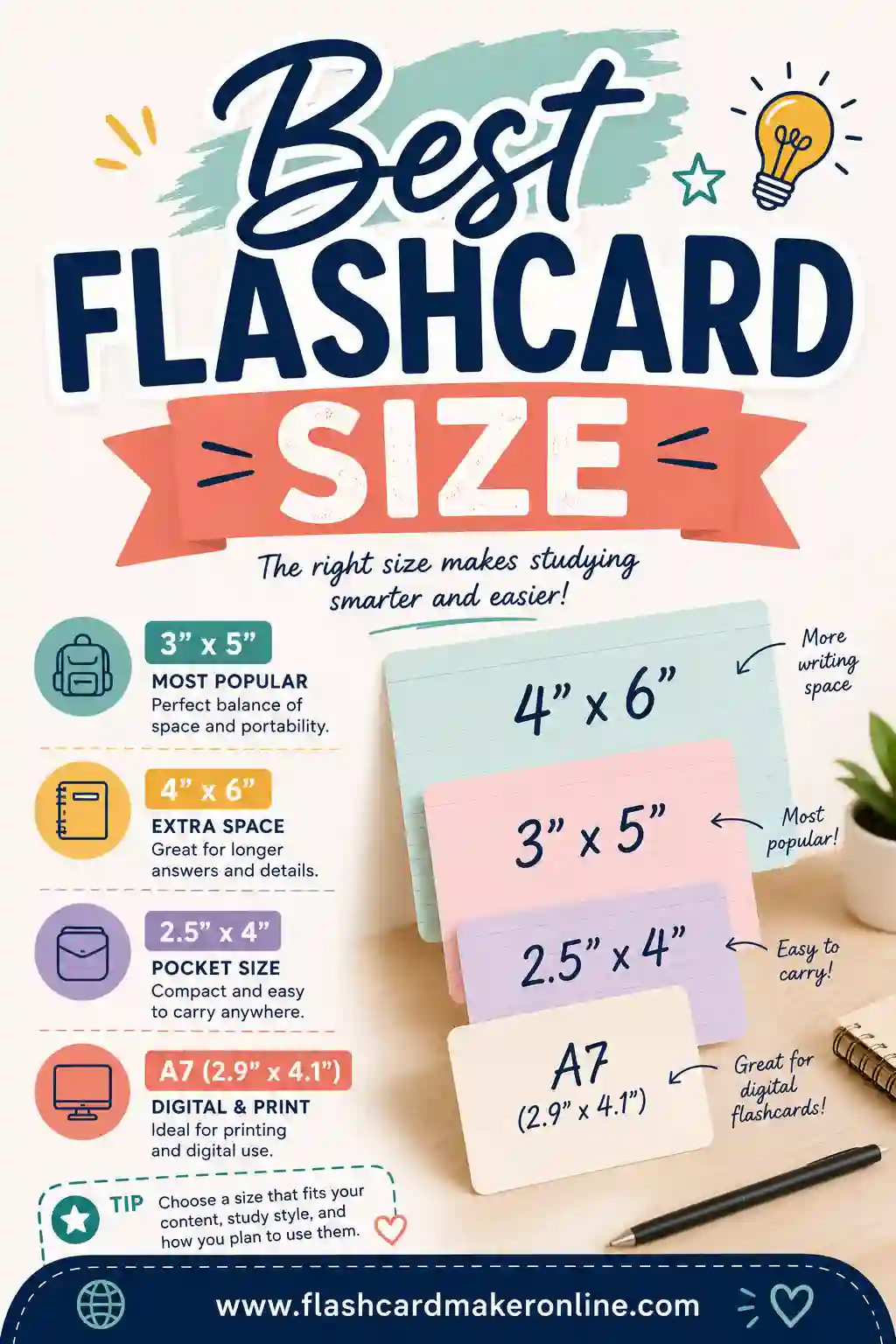
- Print if you want paper cards. In Print, choose Double-sided for cards with the definition lined up on the back, Fronts only if students will write their own answers, or Cut-out grid for a quick sheet of cards to cut apart. For a vocabulary list, Standard or 3×5 index card size is easy to handle; Big or Jumbo works for showing words to a group. Use Print a test page first before printing a long list, then print or save as PDF.
Starting from a preset instead
If your spreadsheet only adds to a common topic, you don't have to paste everything. Start from a preset like SAT Vocab, Spanish vocab, US States & Capitals, or Periodic Table, then paste your extra rows with Add to deck. You get the core list for free and only paste what's unique to your class.
Using Import a File and Download .csv
Besides pasting, the maker has two buttons that deal with whole files.
Download .csv saves your current deck as a CSV file. CSV means "comma-separated values," a plain text format that Excel, Google Sheets, Numbers, and nearly every other spreadsheet app can open. Each card becomes a row.
Import a file loads a deck file back into the maker. The easiest way to make sure a spreadsheet you've built will import cleanly is to match the layout the maker already uses:
- Make a tiny deck of two or three cards in the maker.
- Click Download .csv.
- Open that file in your spreadsheet app and look at how the columns are laid out.
- Put your own data into the same layout and save it as a CSV.
- Use Import a file to load it.
That way you're not guessing at the format. And if an import ever doesn't look right, the helper column and Paste a list are always there as a fallback, since they work with any spreadsheet.
A round trip that keeps your list in one place
Many people like to keep their master list in a spreadsheet and treat the deck as something they rebuild when the list changes. That works well:
- Keep all your words in the sheet, with a column for chapter or week.
- When you need a deck, filter to the rows you want, copy the helper column, and paste with Replace deck.
- When you change a definition, change it in the sheet, not just on the card, so the sheet stays the "real" list.
The opposite direction works too. If you built a deck in the maker and want it in a spreadsheet for sorting or sharing with a teacher, click Download .csv and open the file.
Working With Big Lists
A 40-word list is easy. A 600-row spreadsheet from a whole course is a different story. You can paste it all at once, but studying it all at once rarely works.
Split by chapter, unit, or week. Add a column for the group, filter by it, and make one deck per group. Smaller decks feel finishable, and you can see your progress. Our guide on how to organize flashcards has more ways to group a big set.
Sort by difficulty. Add a column where you mark each row as "known," "shaky," or "new." Filter to "shaky" and "new," copy the helper column, and paste. You'll spend your study time on the cards that need it.
Mix in older cards. Once a unit is solid, add a handful of rows from it to your new deck. A little mixed review keeps older words from fading.
Here's a simple plan for a large list:
| List size | Suggested deck size | How to split it | Daily new cards |
|---|---|---|---|
| Under 50 rows | One deck | No need to split | 10–20 |
| 50–150 rows | 2–4 decks | By chapter or week | 10–20 |
| 150–400 rows | 6–10 decks | By chapter, then by difficulty | 15–25 |
| 400+ rows | Many small decks | By unit, with a "shaky words" deck you rebuild weekly | 15–25 |
These are starting points, not rules. If 20 new cards a day feels easy, add more; if your review pile keeps growing, slow down on new cards until it shrinks.
Mistakes and quick fixes
| Problem | What you'll see | Fix |
|---|---|---|
| Header row copied | A first card that says "Word : Definition" | Delete that card, or start your copy at row 2 |
| Copied two columns instead of the helper column | Each card's text runs together, or doesn't split | Copy only the helper column |
| Colon inside a cell | Card splits in the wrong spot | Use the SUBSTITUTE formula |
| Line break inside a cell | One row turns into two half-cards | Use SUBSTITUTE with CHAR(10) |
| Formula shows as text | The cell literally shows =A2&" : "&B2 |
Make sure the cell isn't formatted as text, and that the formula starts with = |
| Wrong side on the front | Definitions on the front, words on the back | Swap the cell order in the formula |
| Pasted a second batch with Replace deck | Your first batch disappeared | Paste the first batch again with Add to deck |
| Smart quotes or odd symbols | Strange characters on cards | Fix those cells in the sheet and repaste |
| Duplicate rows | Same card twice | Use your spreadsheet's remove-duplicates tool before copying |
If the formula shows up as text in Google Sheets or Excel, it's almost always because the column was formatted as plain text before you typed. Change the format to Automatic (Sheets) or General (Excel), then retype the formula.
Start With the List You Already Have
You've already done the hard part, which is building the list. Add one formula column, copy it, and paste it into the free flashcard maker. In a minute or two your spreadsheet turns into a deck you can study, share, or print.
▶ Open this deck in the flashcard maker
Frequently Asked Questions
Can I paste two spreadsheet columns straight into the maker?
Copying two columns gives you lines separated by a tab, and the Paste a list box reads front : back lines instead. Add a helper column with =A2&" : "&B2, copy that column, and paste it. It takes about a minute even for a long list.
Does this work in Google Sheets as well as Excel?
Yes. The & joining formula, SUBSTITUTE, TRIM, IF, and CHAR(10) all work the same way in Excel and Google Sheets. They also work in Apple Numbers and LibreOffice Calc.
How do I import a CSV file of flashcards?
Use Import a file in the maker. To make sure your file matches the layout the maker expects, download a small deck with Download .csv first, open it, and set up your own file the same way. If you'd rather skip files, the helper column and Paste a list do the same job.
What if my definitions contain colons?
Use =SUBSTITUTE(A2,":"," -")&" : "&SUBSTITUTE(B2,":"," -") so colons inside cells become dashes. Only the separator between front and back stays a colon. For a few special cells, like times, you can rewrite them by hand.
How do I turn a Word vocabulary list into flashcards?
Use Find and Replace to change the list's separator, such as " - ", into " : ". Then copy the list and paste it into Paste a list. If the list is a Word table, it's usually quicker to paste the table into a spreadsheet and use the helper column.
Can I make cards that test both directions?
Yes. Build one helper column with =A2&" : "&B2 and another with =B2&" : "&A2. Paste the first, then paste the second with Add to deck. You'll get each pair as two cards, one in each direction.
Is there a limit to how many rows I can paste?
The practical limit is how many cards you can study well. Long lists paste fine, but a deck of a few hundred cards is hard to work through in one sitting. Split big lists by chapter or week so each deck is something you can finish.
Can I add pictures to cards I imported from a spreadsheet?
Yes. After pasting, open any card and use the option to add a picture. This works well for vocabulary, anatomy, maps, and anything you'd rather recognize by sight.