Free Flashcard Maker — Create & Print Study Flashcards
Make your own flashcards in seconds — add words and your own pictures, flip through them to study, and print clean double-sided or cut-out sheets. No signup, works on any device.
Your cards save automatically in this browser — never uploaded.
Click the card to flip
Pick a card size and layout, then click Print. In the print dialog you can also choose Save as PDF.
- New printer? Print the two-page test first to check which edge to flip on.
- Print at 100% / Actual size (not "Fit to page") so 3×5 and 4×6 cards come out true to size.
- Cut along the light dashed lines. Card stock or heavier paper makes cards you can't see through.
How the flashcard maker works
This free flashcard maker turns your words and pictures into study cards you can flip through or print. Type your own cards, add an image to the front or back, paste a list, or start from a ready-made preset deck. Everything happens right in your browser, so there's nothing to install and nothing to sign up for. Your cards are saved in your browser automatically — refresh the page and your work is still there.
Add your cards
Put the term on the front and its definition on the back. Add a picture to either side with the Image button, and add as many cards as you need — or paste a whole list at once.
Study with flip cards
Open Study, click a card to flip it, and move through your deck. Turn on Shuffle to test yourself in a random order. Pictures show on the card as you study.
Print or save as PDF
Print double-sided cards with backs that line up, a fronts-only sheet, or a cut-out grid. Save as PDF from the same print dialog.
Add pictures to your flashcards
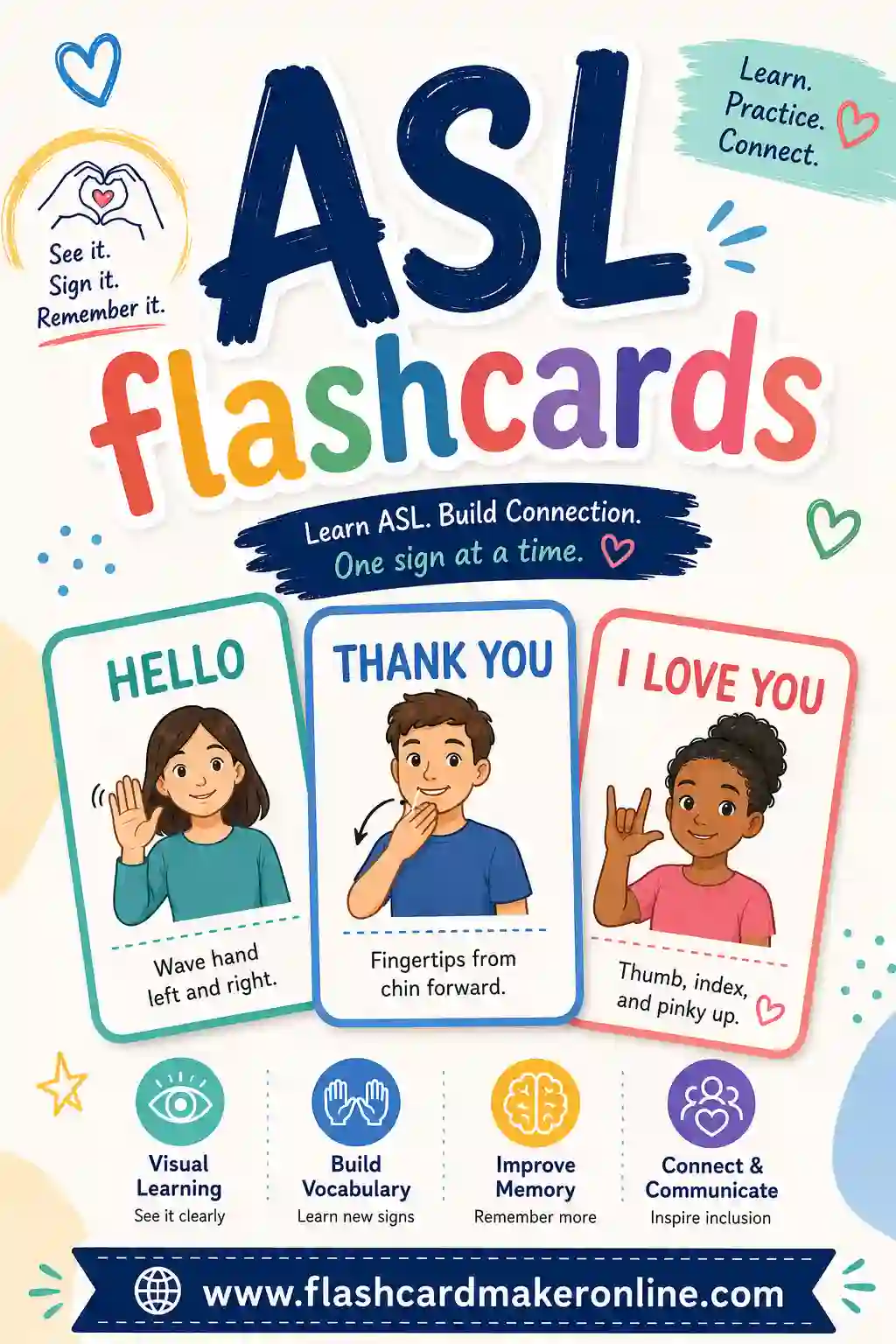
Words aren't always enough. Add a photo, diagram, or drawing to the front or back of any card with the Image button — great for vocabulary, biology, geography, art, sign language, or teaching little ones who read pictures before words. Your images are resized to a sensible size and kept right in your browser, so they load instantly, print with the card, and are never uploaded anywhere.
Print double-sided flashcards that actually line up
Double-sided printing is the part most flashcard tools get wrong. When you flip a sheet of paper to print the back, the columns reverse — so a naive layout puts every definition behind the wrong term. This maker mirrors each row of backs to cancel that flip out. The result: print duplex, flip on the long edge, and every answer lands exactly behind its question.
Prefer scissors? Use the cut-out grid layout. It prints the front and back together in a tidy bordered grid you can cut into single-sided cards, or fold each cell in half for an instant two-sided card.
Ready-made printable decks for popular subjects
Short on time? Load a preset and print it in seconds — or study it on screen first. Every deck is fully editable, so you can add, remove, or rewrite cards and drop in your own pictures before you print.
- Animals with Pictures, First Words, Colors & Shapes, Counting 1–10 — flash cards with a big picture on the front and the word on the back, ready to study or print with no uploads.
- Multiplication, Addition & Division — printable math flash cards for quick times-table and fact drilling.
- Numbers 1–20 — printable number flash cards with the numeral and its word.
- Alphabet / ABC — printable letter flash cards with an example word for early readers.
- Sight Words — printable sight word flash cards, each with a simple sentence.
- Shapes, Colors & Farm Animals — picture-friendly preschool flash cards you can print (add your own images too).
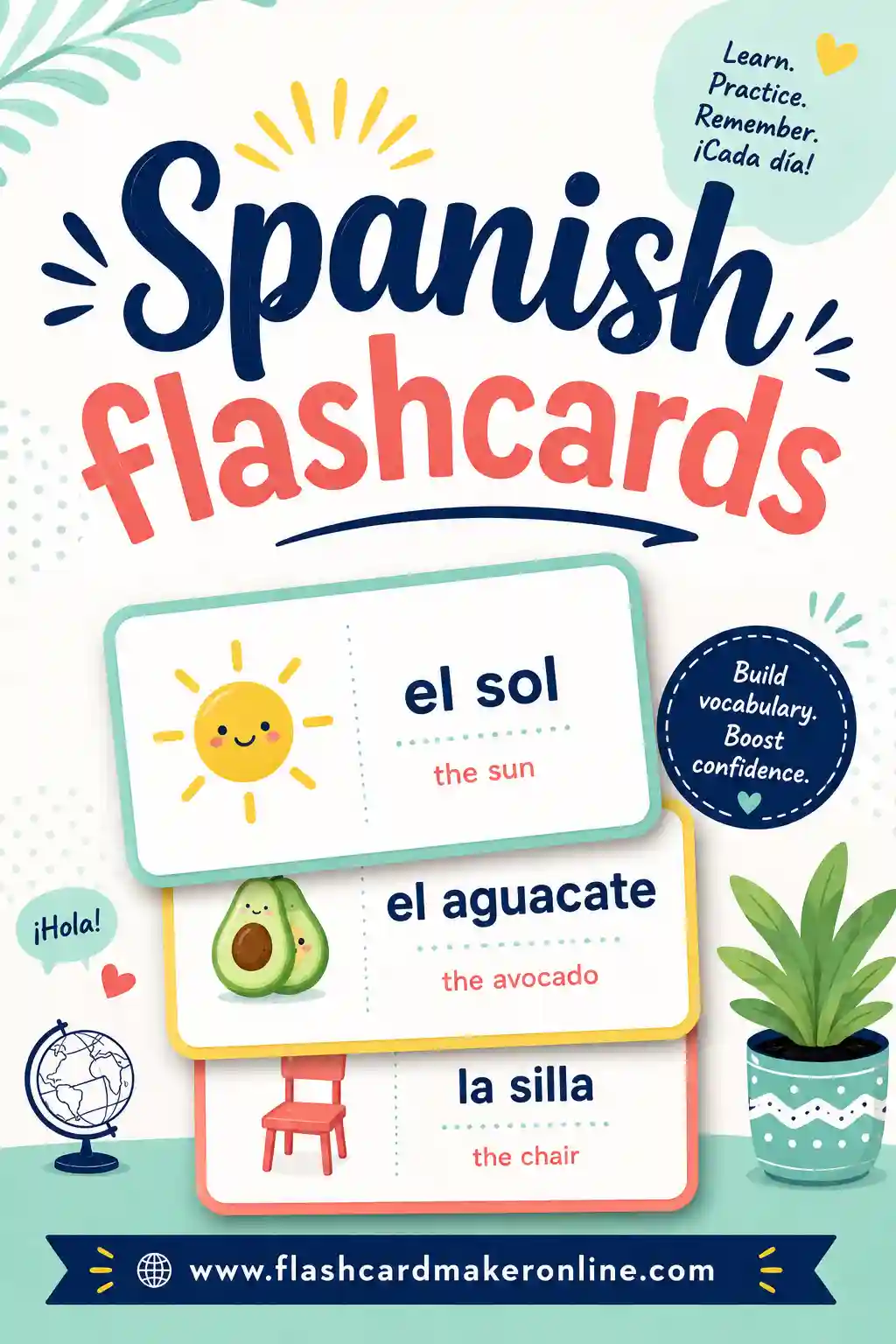
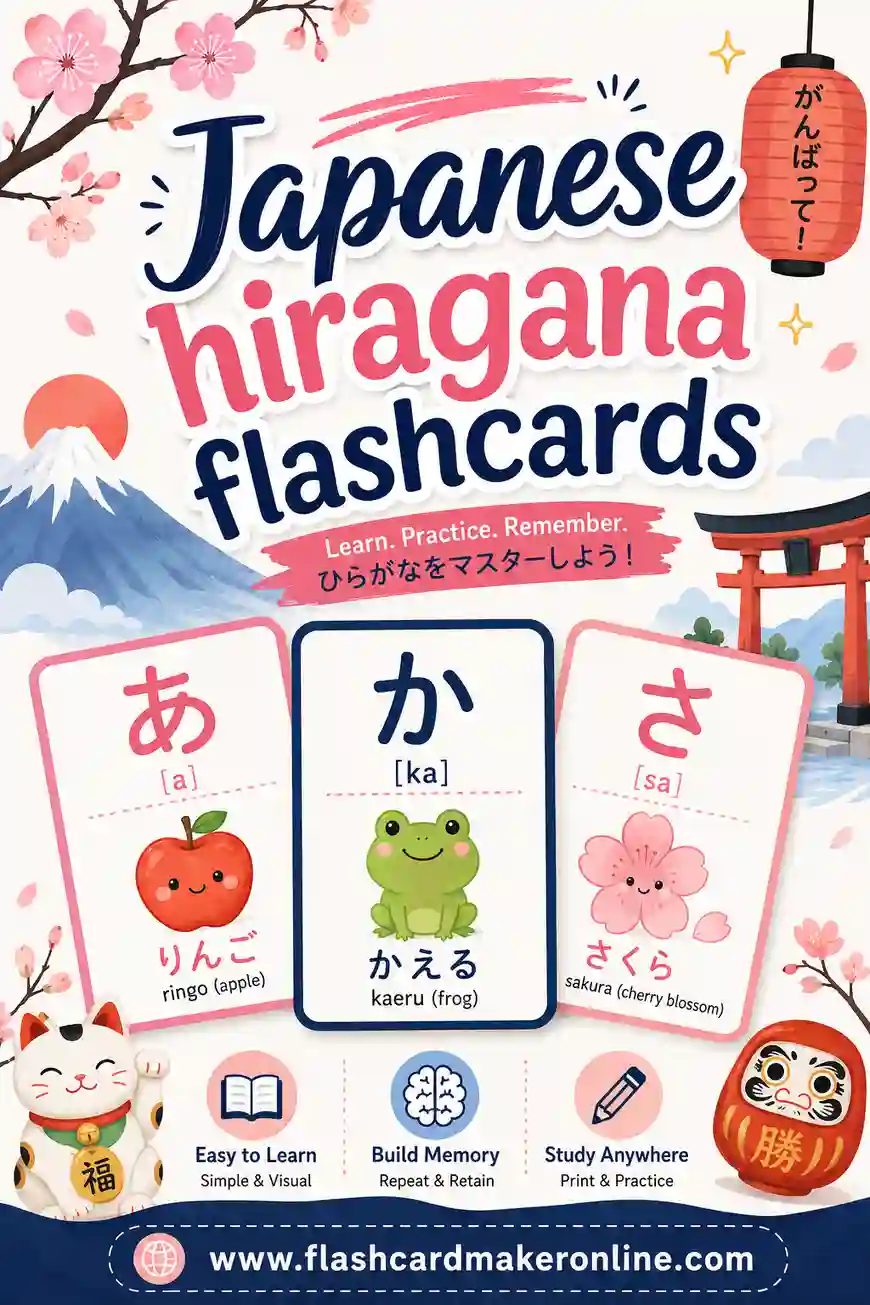
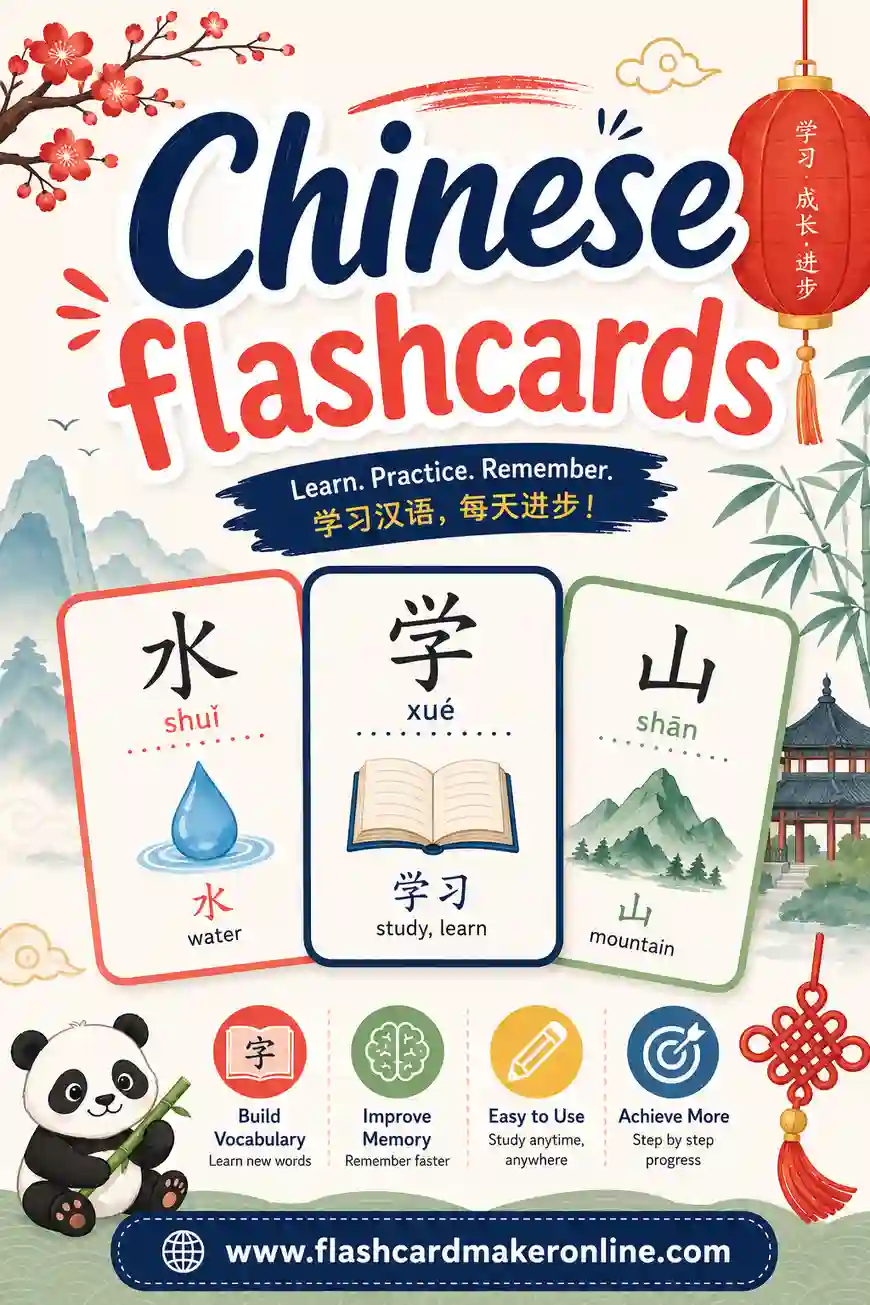
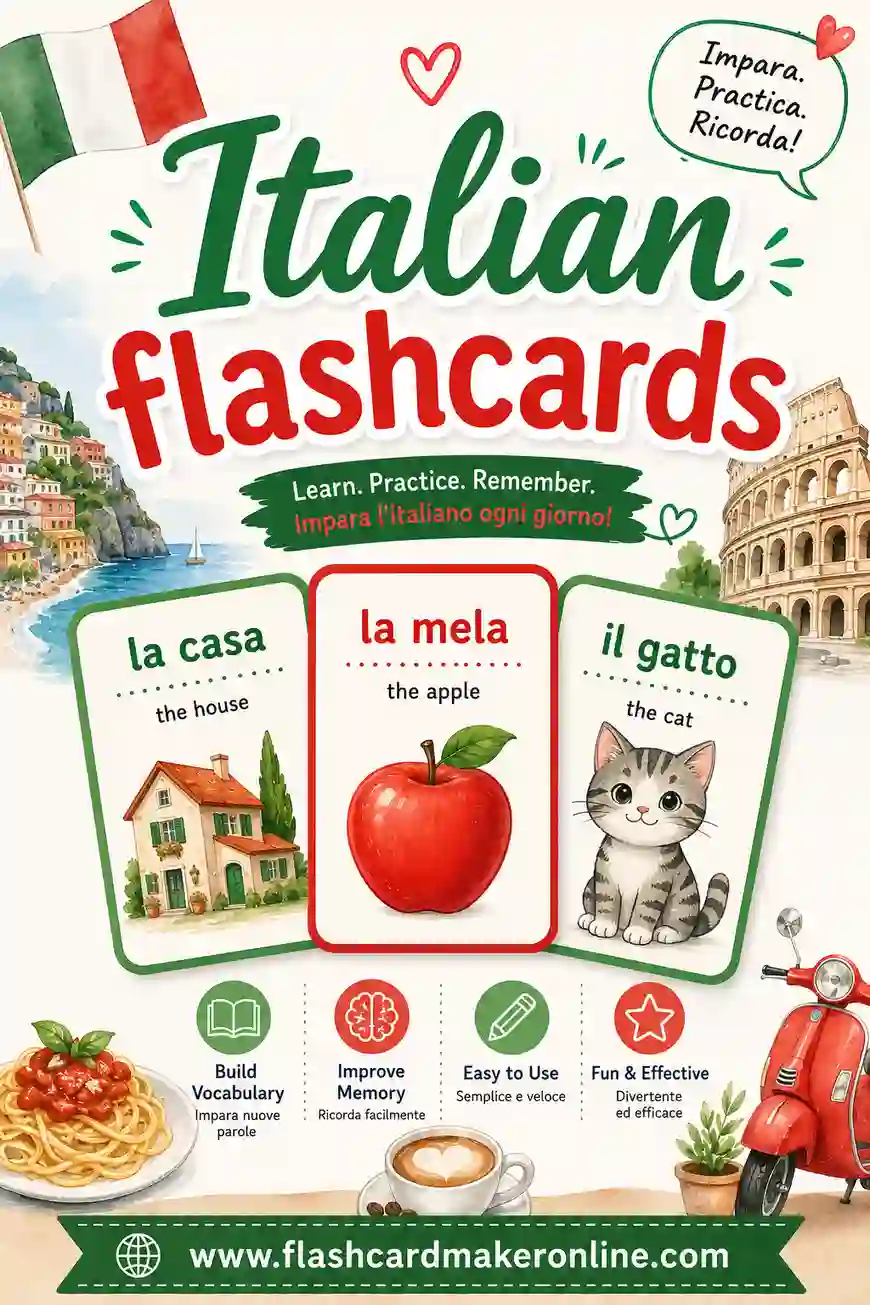
- Spanish & Hiragana — printable language flash cards for vocabulary and the Japanese kana.
- Music Notes, US States & Capitals, Medical Terminology, SAT Vocab — ready-to-print decks for school and test prep.
A Free Flashcard Maker With No Account
Most flashcard tools ask you to sign up before you can save a single card. This one doesn't. Open the page, type your cards, and you're studying or printing within a minute. There's no email to enter, no password to remember, and no paywall on printing. Your deck is stored in your own browser, so it's private by default and still there when you come back.
Where this free flashcard maker really shines is paper. Plenty of study apps are built for the screen first and treat printing as an afterthought. Here, printing is a core feature:
- Double-sided printing that lines up — the backs are mirrored row by row, so when you print duplex and flip on the long edge, each answer sits right behind its question.
- Three print layouts — double-sided, fronts only, or a cut-out grid that puts the front and back together so you can cut or fold each card.
- Five card sizes — Jumbo (2 per page), Big (4 per page), Standard (8 per page), and true-size 4×6 and 3×5 index cards.
- A printer test page — print the two-page test first to see which edge your printer flips on before you use card stock.
- Save as PDF — choose Save as PDF in the print dialog to keep a copy, email it to a student, or print it later.
- Pictures on either side — add your own images to the front or back of any card, and they print with the card.
- Fast deck building — paste a list (one card per line), import a .csv, .tsv, or .txt file, or start from one of the preset decks.
- Easy sharing without accounts — create a share link that gives anyone a copy of your deck, or download it as a .csv.
- On-screen study too — flip cards, shuffle the order, and use Read aloud to hear the current side.
New to printing flashcards? The step-by-step printing guide and our article on double-sided flashcard printing walk through printer settings, paper choice, and cutting.
Printable flashcards vs. study apps (Quizlet, Knowt, Anki)
There's no single best flashcard tool — it depends on how you like to study. Online study apps such as Quizlet, Knowt, and Anki are built mainly around studying on a screen. Depending on the app and plan, they may offer features like accounts that sync across devices, several quiz or game modes, automatic review scheduling, shared libraries of decks, or tools that generate cards for you. Features and pricing change over time, so check each service directly for its current details.
A printable flashcard maker like this one takes a different approach: it's built for making clean physical cards quickly, with nothing to sign up for. Here's a general comparison of the two styles:
| What matters to you | This printable flashcard maker | Typical study apps |
|---|---|---|
| Getting started | Open the page and start typing — no account | Usually ask you to create an account to save and sync decks |
| Printing | Built in: double-sided, fronts-only, cut-out grid, and index-card sizes | Varies; printing is often a secondary feature |
| Where your cards live | In your own browser; you can export a .csv or share a link | Usually stored in your account on the service |
| Studying on screen | Flip cards, shuffle, and read aloud | Often several study modes, and some schedule reviews for you |
| Review scheduling | You manage it yourself, for example with a Leitner box | Some apps schedule reviews automatically |
| Screen-free study | Yes — print the deck and put the phone away | Mostly on a phone, tablet, or computer |
| Bringing your own list | Paste or import term–definition lists; text exports from other tools paste in as-is | Most support some form of import |
Many students use both: an app for review on the go, and printed cards for screen-free study, tutoring, classroom games, or kids who learn better with something to hold. If you're weighing your options, see our guides to paper flashcards vs. apps, free Quizlet alternatives, Quizlet vs. Anki, and the best free flashcard makers.
How to study with flashcards
Making cards is only half the job. How you review them decides how much you remember. These well-established methods work with printed cards or on-screen study:
Use active recall
Look at the front and try to answer from memory before you flip. Saying or writing the answer is better than just thinking "I know this." Pulling information out of memory is what strengthens it — rereading alone doesn't. More on active recall.
Space out your reviews
Instead of one long cram session, review the same deck several times with growing gaps in between — for example, the next day, a few days later, then a week later. Spaced repetition helps you remember more for the same study time. How spaced repetition works.
Sort cards with a Leitner box
Use a few boxes or envelopes numbered 1, 2, 3, and so on. All cards start in box 1. Get a card right and it moves up a box; miss it and it goes back to box 1. Review box 1 most often and higher boxes less often, so your time goes to the cards you don't know yet. The Leitner system explained.
A few more tips that make flashcards work harder for you:
- Keep each card to one idea. One question, one answer. Split long definitions into several smaller cards.
- Write in your own words. Rephrasing a definition as you make the card is already a round of learning.
- Add a picture when it helps. Images are especially useful for vocabulary, anatomy, maps, and young learners.
- Shuffle the deck. Studying in a fixed order lets you memorize the sequence instead of the material. Use Shuffle in Study mode, or shuffle your printed cards.
- Study both directions. For language decks, also go from the back to the front, so you can produce the word as well as recognize it.
- Keep sessions short and regular. A little every day usually beats one long session the night before a test.
For a deeper walkthrough, read how to study with flashcards, flashcard study tips, and how many flashcards to study per day.
Browse free flashcard decks by subject
Want a head start? Each of these pages has a free deck you can study, edit, and print with this flashcard maker.
Languages
Math
Science & health
History, geography & more
Test prep
Early learning
Frequently asked questions
Is this flashcard maker free?
Yes. Flashcard Maker Online is completely free with no signup, no account, and no limits on the number of cards. Create, study, and print as many flashcards as you like.
Can I add pictures to my flashcards?
Yes. Click the Image button on the front or back of any card to add a picture from your phone or computer. Use a picture on its own or alongside text. Pictures show when you study and when you print, and they stay saved in your browser.
How do I print double-sided flashcards so the backs line up?
Choose Print, pick the Double-sided layout, then enable your printer's double-sided (duplex) setting and flip on the long edge. Our layout mirrors each row of backs so every definition lands exactly behind its term after the page is flipped.
Can I paste a list of words to make flashcards quickly?
Yes. Click Paste a list and add one card per line as front : back. Every line becomes a flashcard instantly, so you can build a full deck in seconds. Dashes, equals signs, and tabs work as separators too.
Does it work on my phone?
Yes. The flashcard maker is mobile-first and works in any modern browser on phones, tablets, and computers. In Study mode you can tap a card to flip it, and you can add pictures straight from your phone.
Are my flashcards saved?
Yes. Your cards, including any pictures, are saved automatically in your own browser, so they're still here after you refresh or come back later. Nothing is ever uploaded to a server. To keep a permanent copy, print your deck or save it as a PDF.
Do you have ready-made flashcard decks?
Yes. Pick from preset decks like Spanish vocabulary, multiplication, the alphabet, US states and capitals, medical terminology, and SAT vocabulary — plus picture decks such as Animals with Pictures, First Words, Colors & Shapes, and Counting 1–10 that come with a picture on every card. Edit any deck to fit your study needs.
Is this a good free Quizlet alternative?
It depends on how you study. If you want quick, no-account flashcards that you can print cleanly, including double-sided cards and true-size 3×5 or 4×6 index cards, this flashcard maker is a strong free option. If you mainly want cloud sync across devices, many quiz modes, or automatic review scheduling, a study app may suit you better. Many students use both. See our guide to free Quizlet alternatives.
Can I make flashcards from a PDF or my notes?
There's no automatic generator, but you can turn notes into a deck quickly. Copy your terms and definitions into the Paste a list box, one card per line as front : back, and every line becomes a card. You can also import a .csv, .tsv, or .txt file. Writing the cards yourself is also a useful first round of studying.
Is there a mobile app?
There's no app to download, and you don't need one. The flashcard maker runs in the web browser on your phone or tablet, so you can make cards, add pictures from your phone, and tap to flip in Study mode. Your cards are saved in that browser.
Can I import flashcards from Quizlet or Anki?
Yes, if you can export your cards as text. Lists exported from Quizlet, Anki, or a spreadsheet can be pasted straight into Paste a list, and separators like tabs, commas, colons, dashes, and equals signs all work. You can also use Import a file for .csv, .tsv, and .txt files.
How do I make printable flashcards online?
Add your cards in Make cards (or load a preset), open the Print tab, choose a layout (double-sided, fronts only, or cut-out grid) and a card size, then click Print. Print at 100% / Actual size, and choose Save as PDF in the print dialog if you want a file instead.
Can I print flashcards on 3×5 or 4×6 index cards?
Yes. In the Print tab, choose 3×5 index card (3 per page) or 4×6 index card (2 per page). These print at true size when you set your printer to 100% / Actual size instead of "Fit to page."
How do I share a flashcard deck with students or friends?
Click Get share link and copy the link. Anyone who opens it gets their own copy of your deck, with no account needed on either side. You can also Download .csv to send the deck as a file, or print it and hand out paper cards.
What's the best way to study flashcards?
Try to answer each card from memory before flipping it (active recall), review the deck several times over days instead of cramming (spaced repetition), and spend most of your time on the cards you miss. A Leitner box makes that easy with printed cards. Shuffle the deck so you don't just memorize the order.